Loading the guide…
Create and publish a brand kit
Learn what brand kits contain, how to publish and select one for an email, and how changes affect templates using it.
On this page
A brand kit brings together your colors, fonts, social links, image collections, and writing guidance. Publish a kit and select it for a broadcast, template, or workflow email; that email uses its selected kit. Changing the workspace default does not replace the kit selected by an existing email. This article explains the difference between your brand and a brand kit, what a kit contains, and how to publish and default one.
Brand versus brand kit
Your space has exactly one brand. It is created automatically when you set up the space, and it holds the identity details email law and your recipients expect: business name, website URL, the company mailing address that appears in your footer, and your logo and icon. An Admin edits these details from Settings, then Brand. The page is hidden from members who are not admins, so ask an admin if you need a change there.
There is one brand per space, and it cannot be deleted or duplicated. Plan around a single brand identity for each workspace. If you run two distinct brands, use two spaces.
The company address is not optional. Email law requires a physical mailing address in the footer of marketing email, and maxclicks pulls it from your brand. Keep it accurate, because it appears on every marketing message you send.
A brand kit is different. It is a reusable collection of design assets attached to your brand, and a brand can have more than one kit. You might keep one kit for your main look and another for a seasonal campaign. Kits live on the Brand kits page, separate from the core brand details in settings.
Think of it this way: the brand answers "who are we" (name, address, logo), and a brand kit answers "how should this email look and sound" (colors, fonts, voice, assets).
What a brand kit contains
A kit gathers everything maxclicks needs to style and write an email. You fill in as much or as little as you like; empty parts fall back to sensible defaults.
| Part | What it holds |
|---|---|
| Socials | Links to your accounts across supported platforms, rendered in the email footer. |
| Values | Named brand values with descriptions that guide how maxinja writes. |
| Tones | Named voice and tone descriptions that guide how maxinja writes. |
| Asset collections | Groups of images you upload, each annotated with an AI-generated title and description. |
| Color palettes | Seven colors: canvas background, background, heading, text, button background, button text, and link. |
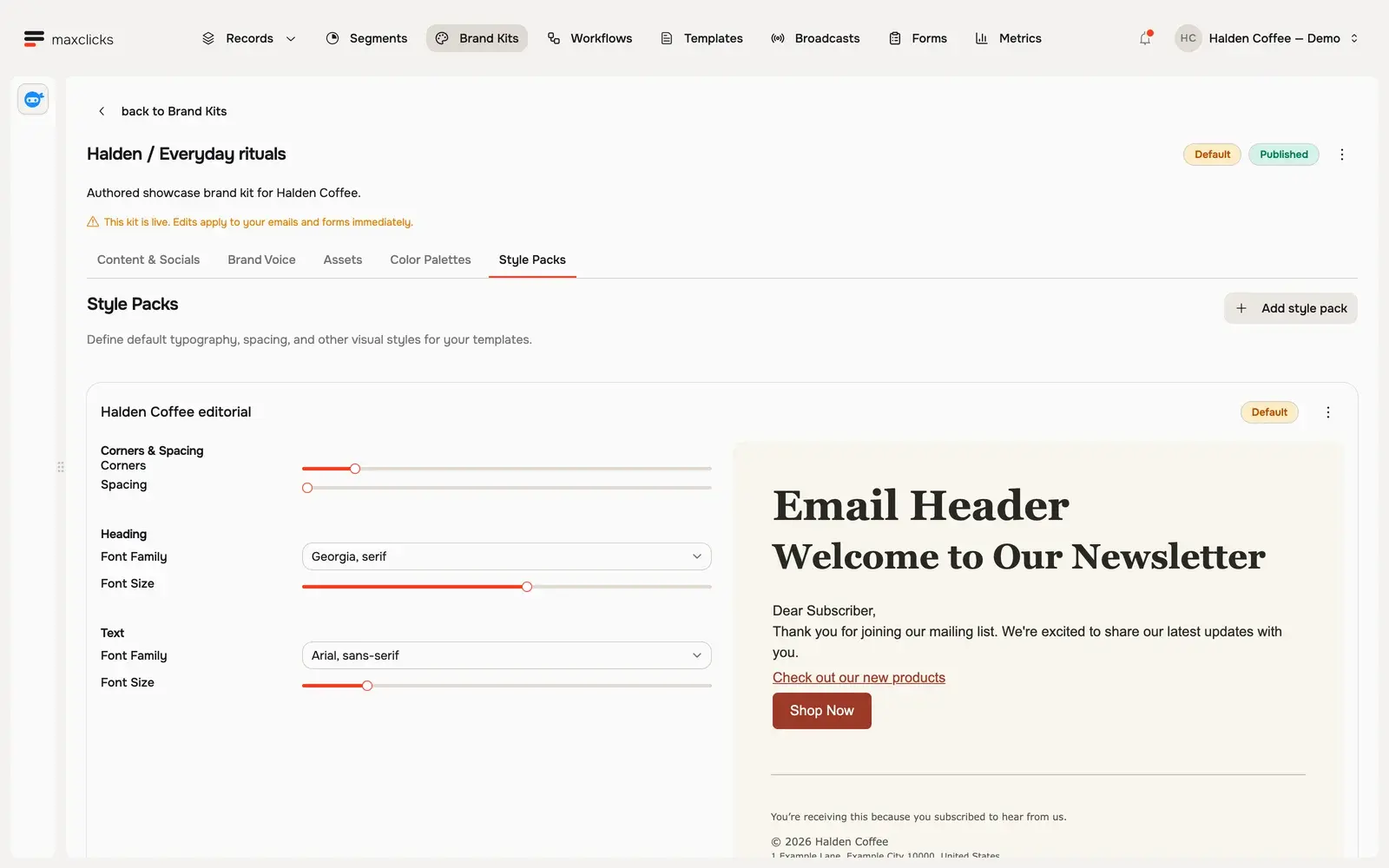
| Style packs | Corner radius, spacing, and heading and body font families and sizes. |
| Footer and rules | Footer and disclaimer text, copyright line, and writing rules such as words to avoid or always include. |
Two of these parts feed the AI directly. Your values and tones shape how maxinja writes copy, and your writing rules tell it what to avoid and what to always include. The rest, colors, fonts, socials, and assets, shape how the email looks and what it links to.
The seven-color palette maps onto the blocks maxclicks renders. Canvas background is the area behind the email; background is the email body itself; heading and text color your copy; button background and button text style your call-to-action buttons; and the link color styles inline links. The style pack sets the corner radius, spacing, and the font families and sizes for headings and body. Together they give every rendered email a consistent look without you styling each block by hand.
Values and tones are worth investing in, because they are what make AI-written copy sound like you rather than generic. A value might be "practical, no hype" and a tone might be "warm and direct". maxinja reads them whenever it drafts or refines content, alongside your writing rules.
Use more than one kit
A brand can hold several kits, and that is useful when one look does not fit every message. You might keep a primary kit for everyday email and a second kit with a different palette and imagery for a seasonal promotion or a sub-audience.
Only one kit is the default at a time. The default is what new email content starts from; other published kits are still available to pick when you compose. Keeping your everyday look as the default, and switching to an alternate kit only on the specific emails that need it, is usually the cleanest approach.
Build a brand kit
You assemble a kit part by part on the Brand kits page. Nothing here needs to be finished in one sitting; you can return and refine it.
During initial setup, you can also ask maxinja to extract a kit from your website. This onboarding path creates an already-published kit, rather than a draft waiting for a separate Publish action. Open it and inspect the business details, colors, assets, and writing guidance before selecting it for a campaign. Website extraction is available through the onboarding assistant while setup is incomplete.
- Open the brand kits page
Open Brand kits from the main navigation. Create a new kit or open an existing one to edit its detail.
- Set colors and fonts
Fill in the seven-color palette and choose a style pack. These control the look of every block maxclicks renders, from headings to buttons.
- Add socials and assets
Add links for the social platforms you use; they render in your email footer. Upload the images you want on hand into an asset collection. maxclicks writes a title and description for each image you upload, and maxinja reads both when it picks an image for an email.
- Describe your voice
Add your brand values and tones with short descriptions, and any writing rules. maxinja reads these when it drafts or refines copy so the writing sounds like you.
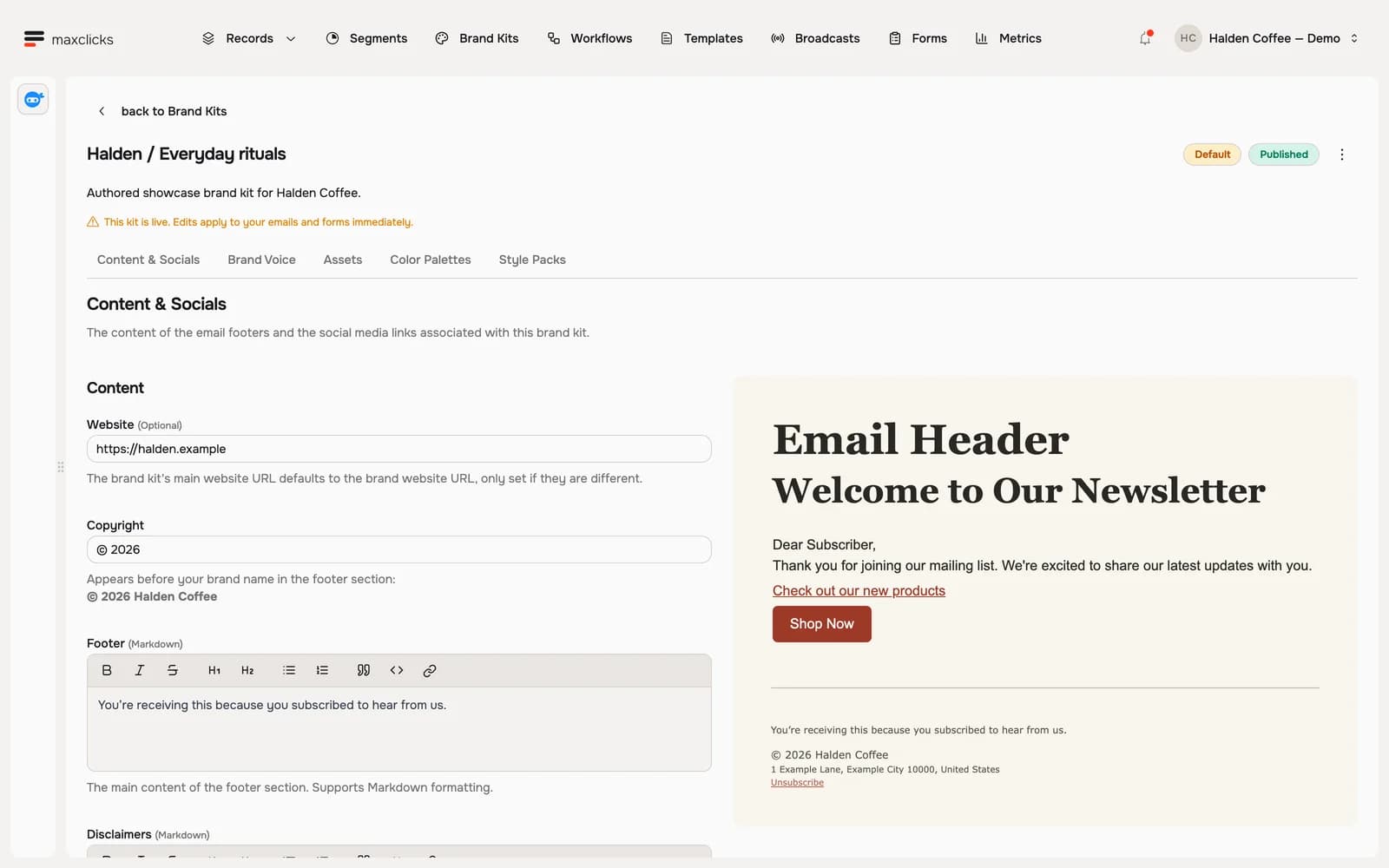
Walkthrough steps
Inspect the published Halden brand kit. Open Color Palettes to review its colors, then Brand Voice to read the writing rules. Return to Content & Socials and its sample footer. The kit contains authored demo branding.
Publish a brand kit
A kit you create manually is a draft until you publish it. An unpublished kit is unavailable for email content and maxinja to use. A kit extracted by the onboarding assistant is published immediately, so review that kit before using it.
- Review the kit
Open the kit detail and confirm the palette, style pack, socials, and voice are complete enough to use.
- Publish it
Click Publish on the kit detail page and confirm. The confirmation reminds you that you can keep editing afterward and that your changes apply to anything using the kit right away. Once published, the kit becomes available to select when you compose email content.
- Confirm the default
The first kit you publish automatically becomes your brand's default, so new email starts from it right away. If you have more than one published kit, set the one you want as the default kit for your brand. New templates start from the default kit.
You do not have to finish a kit before you start using it. Publish it once the essentials are in place, then keep refining.
Be aware that a published kit is live. maxclicks reads its colors, fonts, footer, and voice fresh at send time, so edits reach every email and form already using it, including broadcasts you have already composed or scheduled. A published kit's detail page carries a warning saying exactly that. If you want to try a different look without touching live campaigns, create a second kit instead of editing the live one.
Check a kit by opening a template or broadcast that uses it and inspecting the preview with representative customer data. Review the colors, fonts, footer, and generated writing. The preview is a sample; generated wording can differ when sending renders the email again.
How a brand kit feeds your email
When you compose an email, maxclicks attaches a branding selection to it: your brand, a specific kit, and a chosen asset collection, color palette, and style pack from that kit. This selection travels with the email content.
At send time, that branding is injected automatically into personalization. maxinja uses your colors, fonts, values, and tones to render and, where you have added Adaptyle prompts, to personalize the content. You do not paste your palette into each email; the kit supplies it.
maxclicks also injects the footer for you. Every rendered send includes your footer and disclaimer text, your company address, and your social links. Marketing email additionally gets an unsubscribe and preferences link, which is both a legal requirement and how contacts manage their consent. Spaces on the Free plan also carry a small "powered by maxclicks" badge in the footer; it goes away on the Premium plan.
Because the branding selection lives on the content, changing your default kit does not rewrite emails you have already built; each email keeps the kit it was composed with. To move an existing template to a different kit, open it and pick the kit there.
Editing a kit is different. The email keeps pointing at the same kit, and maxclicks resolves that kit fresh at send time, so your edits do reach campaigns that are already composed or scheduled. Only the selection is pinned to the email, not the contents of the kit.
To see branding in action, continue with your first send in set up your first space and set the workspace-wide defaults in set your space defaults.
Frequently asked questions
Can I have more than one brand?
No. A space has exactly one brand, and it cannot be deleted or duplicated. You can, however, keep more than one brand kit under that single brand, for example a main kit and a seasonal one. If you truly run two separate brands, create a second space.
Why is my new kit not showing up in my emails?
A brand kit has to be published before templates or maxinja can use it. Publish the kit if needed, then select it on the email you want to update. You can also set it as the default for new content, but that does not change the kit on existing emails. A kit extracted during onboarding is already published and should be inspected before use.
Do I have to fill in every part of a kit?
No. Any part you leave empty falls back to a sensible default. That said, colors, fonts, and your values and tones have the biggest effect on how on-brand your email looks and sounds, so those are worth completing first.
What happens to existing emails when I change my default kit?
Nothing changes automatically. The branding selection is saved on each email's content, so emails you already built keep their original kit. Changing the default only affects email you compose afterward. To switch an existing template, open it and select the new kit.
Does editing a published kit change emails I have already scheduled?
Yes. Only the choice of kit is saved on the email, not the kit's contents, and maxclicks reads the kit fresh at send time. Editing a published kit therefore reaches every email and form pointing at it, including scheduled broadcasts. To experiment safely, create a second kit and leave the live one alone.
Where do I edit my logo, address, and website?
Those belong to the brand itself, not a kit. An Admin edits them from Settings, then Brand; the page does not appear for other roles. Your company address and logo appear in the injected footer of every email you send.
Did this article answer your question?