Loading the guide…
Invite your teammates
Learn how to invite people to your space by email and choose the right role for each one.
On this page
A space is built for a team. You invite people by email, and each person gets a role that decides what they can do. This guide covers the quick path: send an invite, pick a role, and understand what each one grants at a glance. For the full detail, read invite members and set permissions.
Who can invite
Managing members is an admin task. When you create a space you become its first admin, and can invite people right away.
Invite a member
- Open the Members page
Open Settings, then Members. You see everyone currently in the space with their role.
- Enter an email address
Add the person's email address. Use the address they will sign in with. maxclicks matches it against existing users.
- Choose a role
Pick a role in the Invite as list: Admin, Non-paid Admin, or Member. The next section explains what each one grants. You can change it later at any time.
- Send the invite
Confirm to send. What happens next depends on whether the person already uses maxclicks.
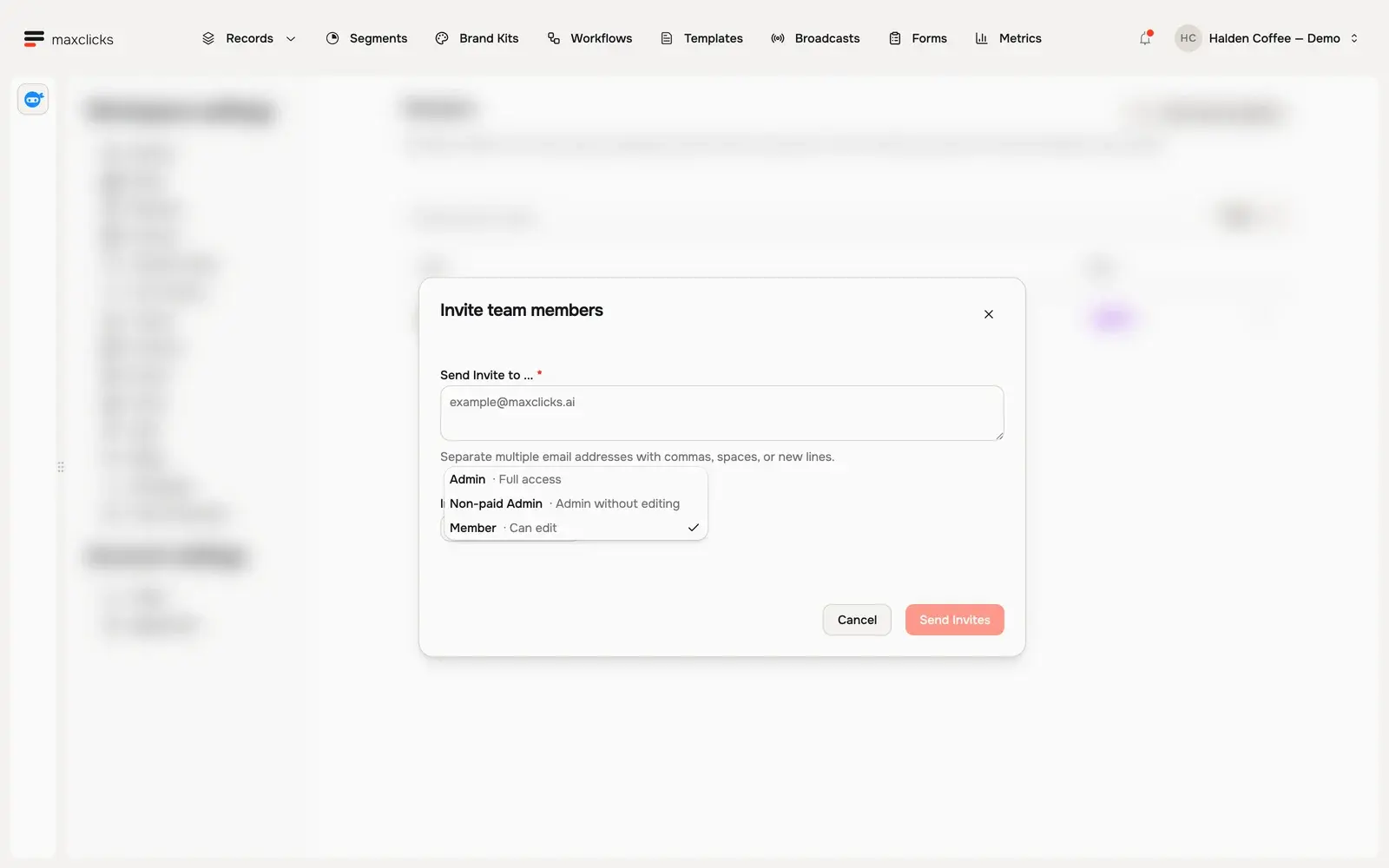
Walkthrough steps
Open Members, choose Invite team members and inspect the role choices. Admin, Non-paid Admin and Member have different access. No invitation is sent.
Email invites and invite links
How someone joins depends on whether they already have a maxclicks account.
- If the email belongs to an existing user, they join the space immediately and see it the next time they open maxclicks.
- If the email is new to maxclicks, they receive an invitation link by email. Following the link creates their account and adds them to the space with the role you chose.
Either way, the person lands in your space with the exact access you set, so pick the role carefully before you invite.
The roles
Every member can read everything in the space. The role decides what they can do on top of that.
| Role | What it grants |
|---|---|
| Admin | Full access: manage members, billing, space settings, suppressions, and integration connections, and create, edit, and send everything. |
| Non-paid Admin | Administration without editing: members, billing, space settings, suppressions, and integration connections, but no changes to content. |
| Member | Create, edit, and delete entities, run maxinja, and send email. No administration. |
A few practical notes on choosing a role:
- Pick Member for the people doing the work: building broadcasts, segments, workflows, and forms. Sending email and running maxinja both need this role or Admin.
- Pick Non-paid Admin for someone who administers the space but does not build in it, such as a billing owner.
- Pick Admin for the small group that needs both.
An admin can assign any role. A Non-paid Admin can assign Non-paid Admin or Member, and a Member cannot invite anyone.
Change or remove access later
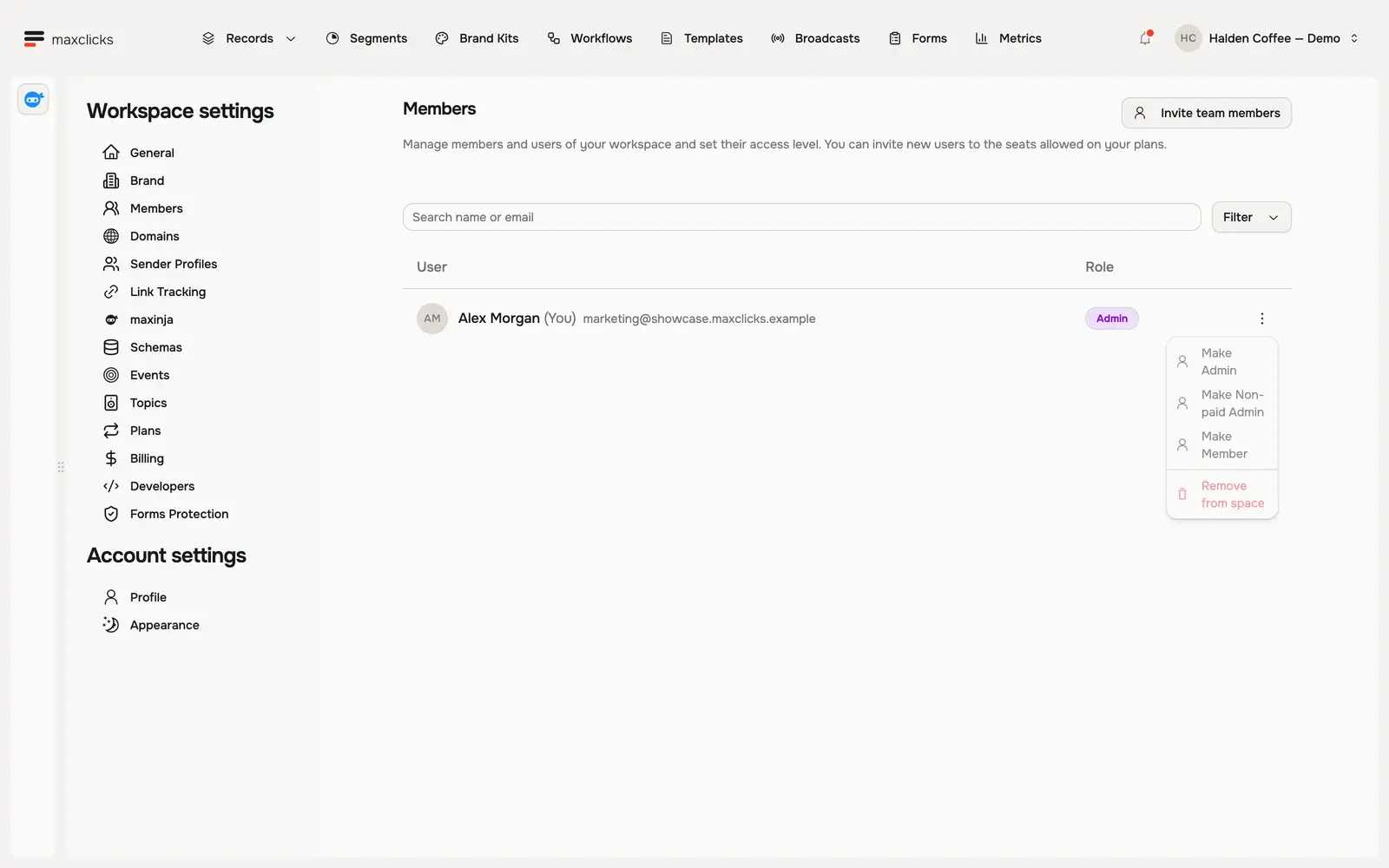
Roles are not permanent. An admin can change any member's role, or remove a member, from the same Members page. Changes take effect immediately. For the complete reference on roles, seat billing, and edge cases, read invite members and set permissions.
Frequently asked questions
What happens if I invite someone who is not on maxclicks yet?
They receive an invitation link by email. Following it creates their maxclicks account and adds them to your space with the role you chose. Existing users join immediately instead.
Does adding a teammate cost anything?
On the Free plan, no. On Premium, Admin and Member are each a paid seat, because both can edit. Non-paid Admin is free, so a billing owner does not add to your seat count.
Can someone administer the space without being able to edit content?
Yes. That is the Non-paid Admin role. They can manage members, billing, and space settings, but cannot create or edit space content. This is a common setup for a billing owner, and it is the one role that costs nothing on Premium.
Can I change a teammate's role after inviting them?
Yes. An admin can change any member's role or remove them at any time from Settings, then Members. Changes apply right away.
Did this article answer your question?