Loading the guide…
Add and edit contacts
Learn how to add contacts by hand, edit and tag them, run bulk actions, and understand how maxclicks identifies each person.
On this page
Once you have a contact schema, you fill it with people. Most contacts arrive in bulk through a CSV import, a form, or the API, but you also add and edit them by hand from the records table. This article covers adding a single contact, editing one, tagging and annotating, running bulk actions across many at once, and how maxclicks recognizes the same person across sources.
Where contacts live
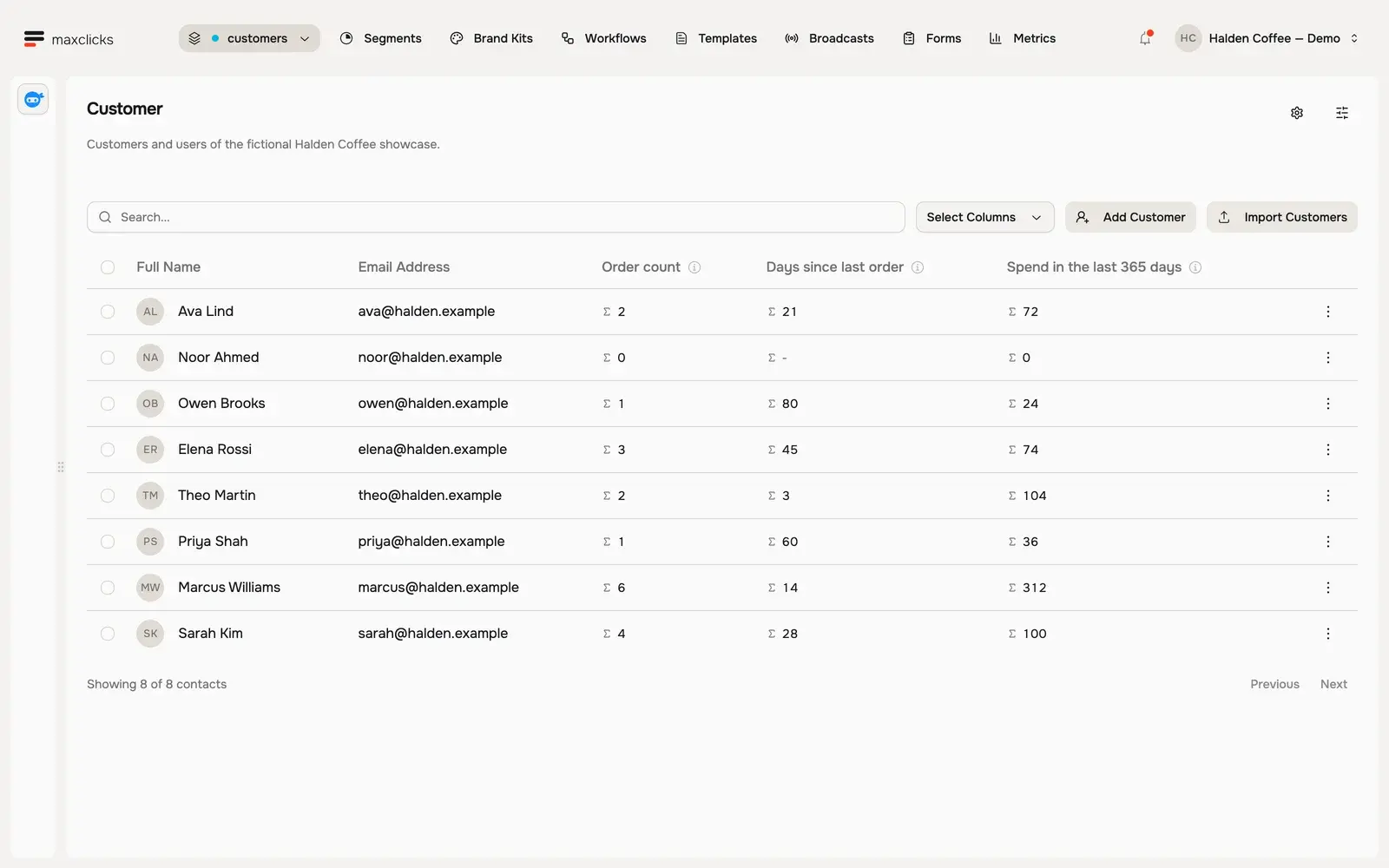
Every contact schema has a records table. Open Records in the top bar and choose the schema you want, such as Customers. The table lists every contact in that schema, with search and filters to narrow it down. From here you create contacts, open a contact's detail, and run actions across a selection.
Walkthrough steps
Inspect the eight fictional Halden customers and their computed order fields. Open Sarah’s order-count explanation, wait for the actual query to return four, then open her contact profile and preferences. No record is edited.
Add a contact by hand
Adding a single contact is the quickest way to capture someone you just spoke to or to test your setup.
- Open the records table
Open Records in the top bar and select the contact schema you want to add to.
- Create a new contact
Choose to add a contact. A form opens with your schema's fields: the base attributes like email, first name, and last name, plus any custom attributes you defined.
- Fill in what you know
Enter the details you have. You do not need every field: an email alone is enough to create a contact. Leave the rest empty and fill them in later.
- Set their communication topics
If the person has agreed to hear from you, pick at least one entry under Communication topics. That is what subscribes the contact to email. Leave it empty and the contact is saved with no email subscription.
- Save the contact
Save to create the contact. It appears in the table immediately, marked with the source manual so you know it was added by hand.
How maxclicks identifies a contact
maxclicks treats contacts as unique within their schema, so the same person is one record no matter how many times they arrive. Whenever a contact comes in, from your manual entry, an import, a form, or the API, maxclicks decides whether it matches someone you already have using a fixed identity order:
- If the contact carries an id (the maxclicks contact ID), match that exact contact. An id that matches nothing is reported, never created.
- Otherwise, if it has a userId, match the contact with the same userId.
- Otherwise, if it has an email, match a contact that has that email and no userId.
- Otherwise, if it has a phone, match a contact that has that phone and no userId and no email.
- Otherwise, create a new contact.
For most lists, matching happens on email, which is why a consistent email keeps a person as a single record across every source. This is also why re-importing an updated file updates your existing people instead of duplicating them.
Edit a contact
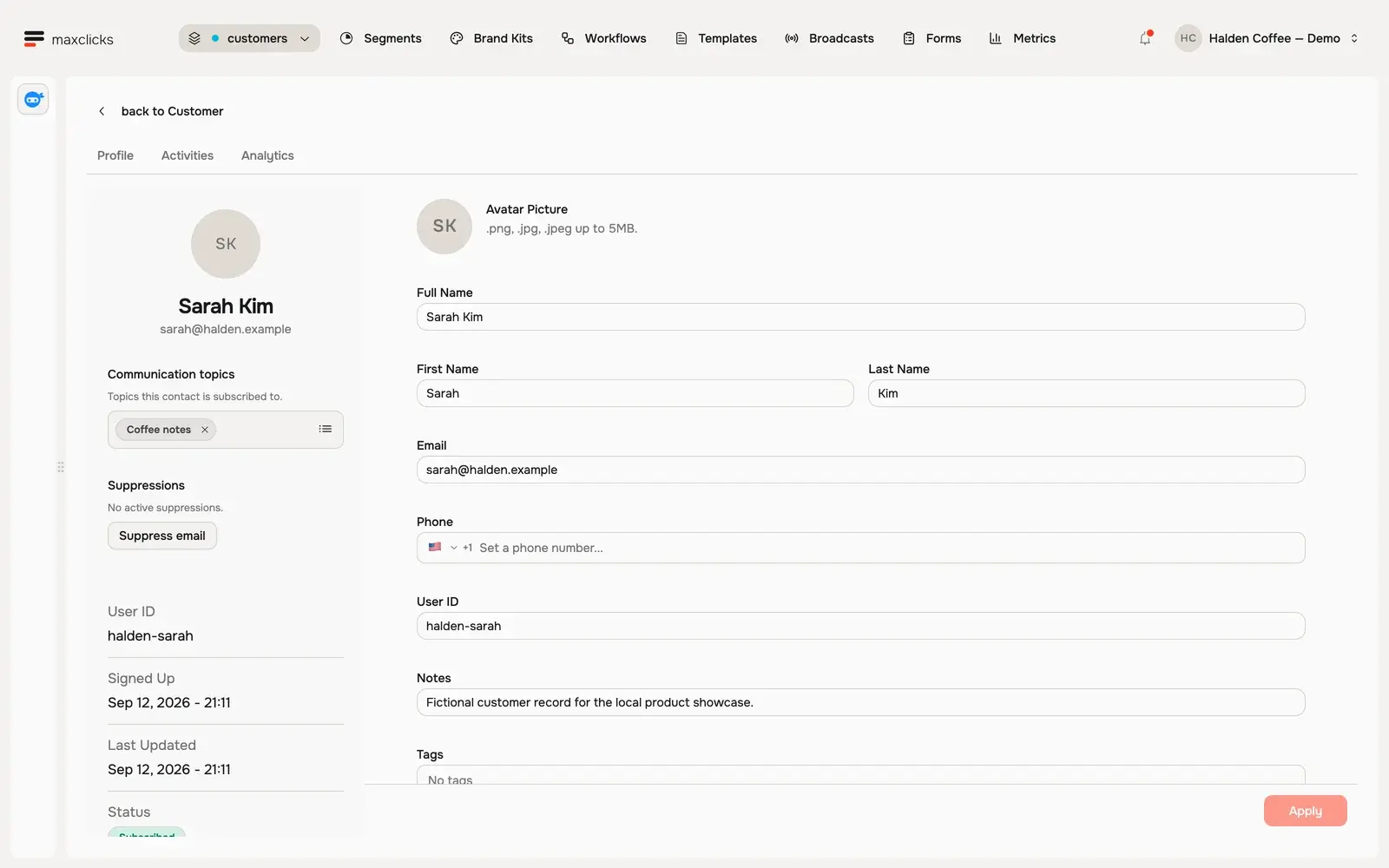
Open any contact from the records table to see its detail: its fields, its tags, and its activity. Editing works the same as adding.
- Open the contact
Click a contact in the records table to open its detail page. You see its attributes, its tags and notes, and an activity view of what has happened with it.
- Edit its fields
Change any editable field and save. Your custom attributes and the editable base fields, like name, email, and phone, are all updated in place.
Some fields you cannot edit. maxclicks manages them for you and ignores any attempt to set them from an import or the API:
- source records how the contact entered (import, api, form, manual, workflow, or integration) and is set once when the contact is created.
- createdAt and updatedAt track timing and are maintained automatically.
- id is assigned by maxclicks when the contact is created and never changes.
Full name is not one of them. maxclicks builds it from the first and last name when you leave it out, but you can also set it yourself, on the contact's detail page or from an import. Typing into full name clears the separate first and last name, so use it for people whose name does not split cleanly.
Editing a custom attribute to empty clears its value but keeps the field on the contact. There is no way to remove a custom attribute's value entirely: you clear it or you change it.
Tags and notes
Two fields group contacts without adding structure to the schema.
Tags are plain string labels, like vip or beta, that you attach to contacts for grouping and filtering. Tags are normalized, so VIP and vip are the same tag. When you type a new tag, maxclicks creates a tag definition for it automatically, with a display label and a color, so it looks consistent everywhere it appears. Tags are a fast, informal way to mark contacts you later target in a segment.
Notes are free-form text on the contact for anything that does not fit a field: context from a call, a reminder, a caveat. They are for humans to read, not for filtering.
Bulk actions
When you need to act on many contacts at once, select them in the records table and apply a bulk action. Bulk actions only touch the contacts that actually need the change, so re-running one is safe.
| Action | What it does |
|---|---|
| Add tags | Apply tags across the whole selection at once. |
| Subscribe or unsubscribe | Change email consent for the selection. Every change is recorded in the audit trail. |
| Add or remove topics | Add the selection to, or remove it from, a communication topic. |
| Delete | Remove the selected contacts. This deletes the records permanently. |
Those are the only bulk actions. To take a tag off a contact, or to suppress an address, open that contact and change it there.
Consent and suppressions
Subscription and topic changes are consent changes, so maxclicks records each one in the contact's audit trail: the event, its state, who made it, and the context. This keeps you compliant with rules like GDPR and CAN-SPAM and gives you a defensible history of every opt-in and opt-out.
Suppression is different from unsubscribing. Unsubscribing changes a contact's consent; suppressing blocks sending to an email address regardless of any contact. It is also a single-contact action: you suppress and unsuppress an address from that contact's detail page, not from a selection. To understand how the two interact and when maxclicks suppresses automatically, read how unsubscribes and preferences work and manage suppressions.
Where contacts come from
Every contact carries a source that tells you how it entered your space. You cannot set it: maxclicks assigns it and it never changes.
| Source | How the contact entered |
|---|---|
| manual | Added by hand from the records table. |
| import | Created by a CSV import. |
| form | Submitted through one of your forms. |
| api | Created through the Public API. |
| workflow | Created by a workflow action. |
| integration | Synced in by a connected integration. |
A contact's source explains your data and feeds segments, for example targeting everyone who came in through a form. To bring in an existing list, see import your contacts from a CSV file. To group contacts into filtered audiences, see create a segment.
Frequently asked questions
Why do I have two contacts for the same person?
Because they came in with different identifiers. maxclicks matches on id, then userId, then email, then phone, so two records appear when the identifier differs between sources, for example one with a userId and one with only an email. Give the same person a consistent identifier to keep them as one record.
Can I edit a contact's source or created date?
No. The source, created date, and updated date are set and maintained by maxclicks. Any value you try to set for them through an import or the API is ignored. They give you a reliable record of how and when each contact entered.
How do I stop emailing a contact?
You have two options depending on your intent. Unsubscribing changes the contact's consent and is the right choice when they asked to stop. Suppressing blocks sending to their email address outright and is useful for hard cases. You can unsubscribe one contact or a whole selection at once; you suppress an address from a single contact's detail page.
What happens when I delete a contact?
The contact is removed permanently and deletion triggers fire across your workflows and webhooks. Deletion is not reversible with a single undo, so select carefully before running a bulk delete. If you only want to stop emailing someone, unsubscribe or suppress them instead of deleting.
Do contacts I add by hand count toward my plan?
Yes. Every contact is a record, and records, contacts and objects alike, count toward your plan's included allowance regardless of how they were added. A handful of manual contacts is negligible, but keep it in mind alongside large imports.
Did this article answer your question?