Loading the guide…
Create your account and sign in
Learn how to create your maxclicks account, sign in with an email code, a magic link, or Google, and start onboarding.
On this page
Your maxclicks account is your personal identity on the platform. It is tied to your email address and gives you access to every space you create or are invited to. This guide covers how to sign in for the first time and what happens right after.
How signing in works
maxclicks has no separate sign-up and sign-in. You always start from the same place. When you enter an email address that maxclicks has not seen before, it creates your account and signs you in. When you enter an address that already has an account, it signs you back in. Either way, you use the same screen.
Because of this, there is nothing to register in advance. Your first successful sign-in is what creates your account.
maxclicks is built for teams and businesses, so it accepts work email addresses only. Personal addresses from providers such as Gmail, Yahoo, Outlook, iCloud, and Proton are rejected with "Please use your work email address", on email sign-in and on Google sign-in alike. Use the address at your own company domain.
Sign in with an email code or a magic link
The simplest way in is with your email address. maxclicks confirms it is really you with either a short code or a one-click link.
- Enter your email address
Open the maxclicks sign-in page and type your email in the Email address field, then choose Continue with email. If this is your first time, this same step creates your account.
- Choose how to confirm
maxclicks sends you a message with a six-digit code and a magic link. Enter the code on the sign-in screen, or open the link from the same device to sign in with one click.
- Finish signing in
Once your code or link is accepted, maxclicks signs you in and takes you to onboarding if this is a new account, or to your spaces if you already have one.
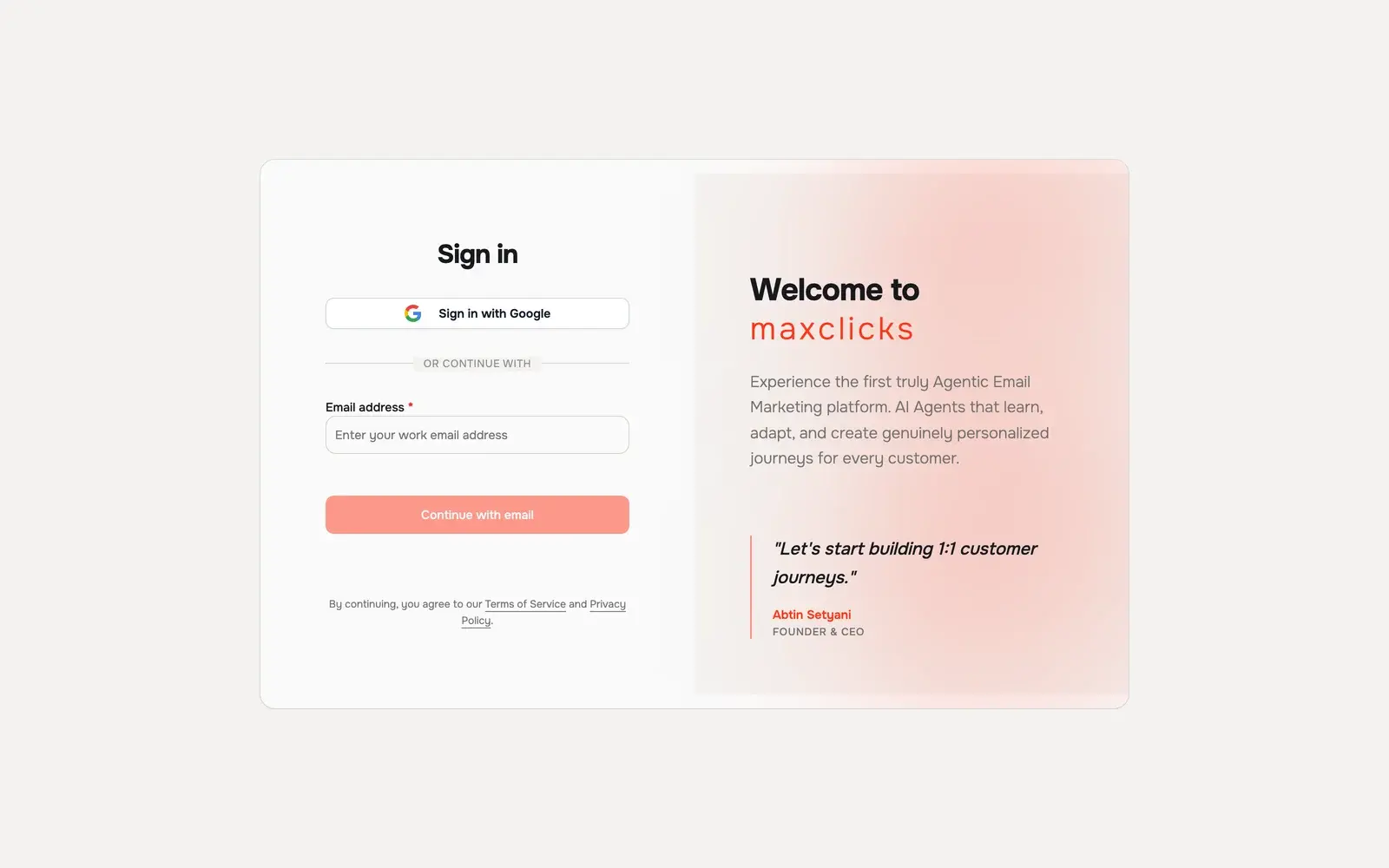
The code and the magic link both expire after a short window, so use whichever reaches you first. If nothing arrives, request a new one and check your spam folder.
Sign in with Google
If you would rather not handle a code, you can sign in with Google instead. Choose Sign in with Google, pick the account you want, and maxclicks signs you in. As with email, a first-time Google sign-in creates your account automatically. Google One Tap may also offer to sign you in directly when you land on the page. Pick your work account: a personal Google address is rejected here too.
What happens after your first sign-in
The first time you sign in, maxclicks walks you through a short onboarding flow before you reach the main app.
- Complete your profile
Add your name so teammates can recognize you. This is a quick, one-time step.
- Set up your first space
maxclicks then opens a three-step wizard that creates your first space, brand, and sending domain, and defines your first contact schema. You become the admin of any space you create.
For a full walkthrough of that wizard, read set up your first space. After setup, the natural next steps are to verify your sending domain and create your first contact schema.
Frequently asked questions
Do I need to create an account before I sign in?
No. maxclicks has no separate registration. Enter your email or use Google, and if you do not have an account yet, maxclicks creates one for you as part of signing in.
My code or magic link did not arrive.
Check your spam folder first. Codes and links expire quickly, so if too much time has passed, return to the sign-in screen and request a new one. Make sure you entered the address you can actually receive mail at.
Why was my email address rejected?
maxclicks only accepts work email addresses. If yours is at a consumer provider such as Gmail, Yahoo, Outlook, iCloud, or Proton, you see "Please use your work email address". Sign in with your company address instead.
Can I sign in from more than one device?
Yes. Sign in on another device the same way, by entering your email or using Google. Because there is no separate registration, you always use the same sign-in screen wherever you are.
What if I belong to more than one space?
After you sign in, you can switch between all the spaces you belong to from the space menu in the top bar. Your single account gives you access to every one of them.
Did this article answer your question?