Loading the guide…
Choose an editor mode
Learn the four email editors, when each fits, and how sample data drives the live preview.
On this page
Every email you send in maxclicks, whether it is a broadcast, a stored template, or a workflow send-email step, is written in the same shared composer. The composer offers four editors, a live preview, and sample data to render that preview against. This article explains the four editors, when each fits, what switching costs you, and how the preview and thumbnail are produced.
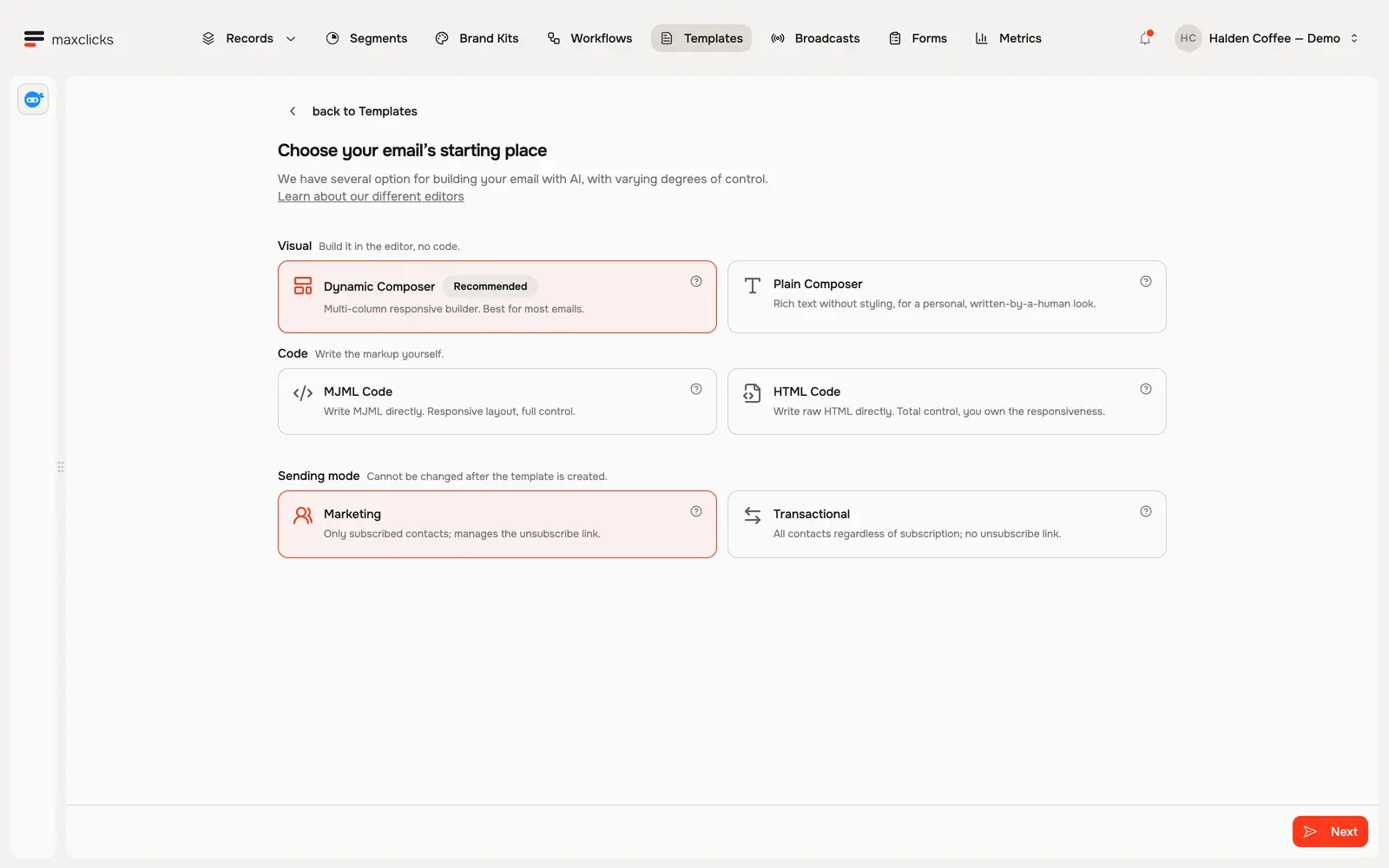
You pick the editor when you create the email, in the Choose your email's starting place step of the new-broadcast or new-template dialog. The same step sets the sending mode, Marketing or Transactional, which cannot be changed afterward either.
The four editors
Each editor combines two choices: the body format your email is built in, and how you work with it. The format is MJML or HTML. The surface is a visual canvas or a code editor. The picker groups them under Visual and Code.
- Body format is what the email is compiled from. MJML is an email-specific markup language that compiles to responsive HTML which renders consistently across the many inconsistent email clients. Plain HTML is written and sent as HTML directly, giving you full control and full responsibility for how it renders.
- The surface is how you build the content. A visual editor is a block-based canvas: you assemble the email from blocks such as text, image, button, divider, and spacer, without touching code. A code editor is exactly that: you write the MJML or HTML by hand.
| Editor | Format | Surface | Best for |
|---|---|---|---|
| Dynamic Composer | MJML | Visual blocks | Most emails: multi-column and responsive by default, no code needed |
| Plain Composer | HTML | Visual blocks | A personal, written-by-a-human look with minimal styling |
| MJML Code | MJML | Code | Fine control over MJML while keeping responsive output |
| HTML Code | HTML | Code | Pasting or hand-writing a complete HTML email |
If you are unsure, start in the Dynamic Composer. It is the one maxclicks marks Recommended, and it gives you a responsive result without writing code.
When to use each editor
The right editor depends on how much control you need and whether you are starting from scratch or bringing existing HTML.
Dynamic Composer
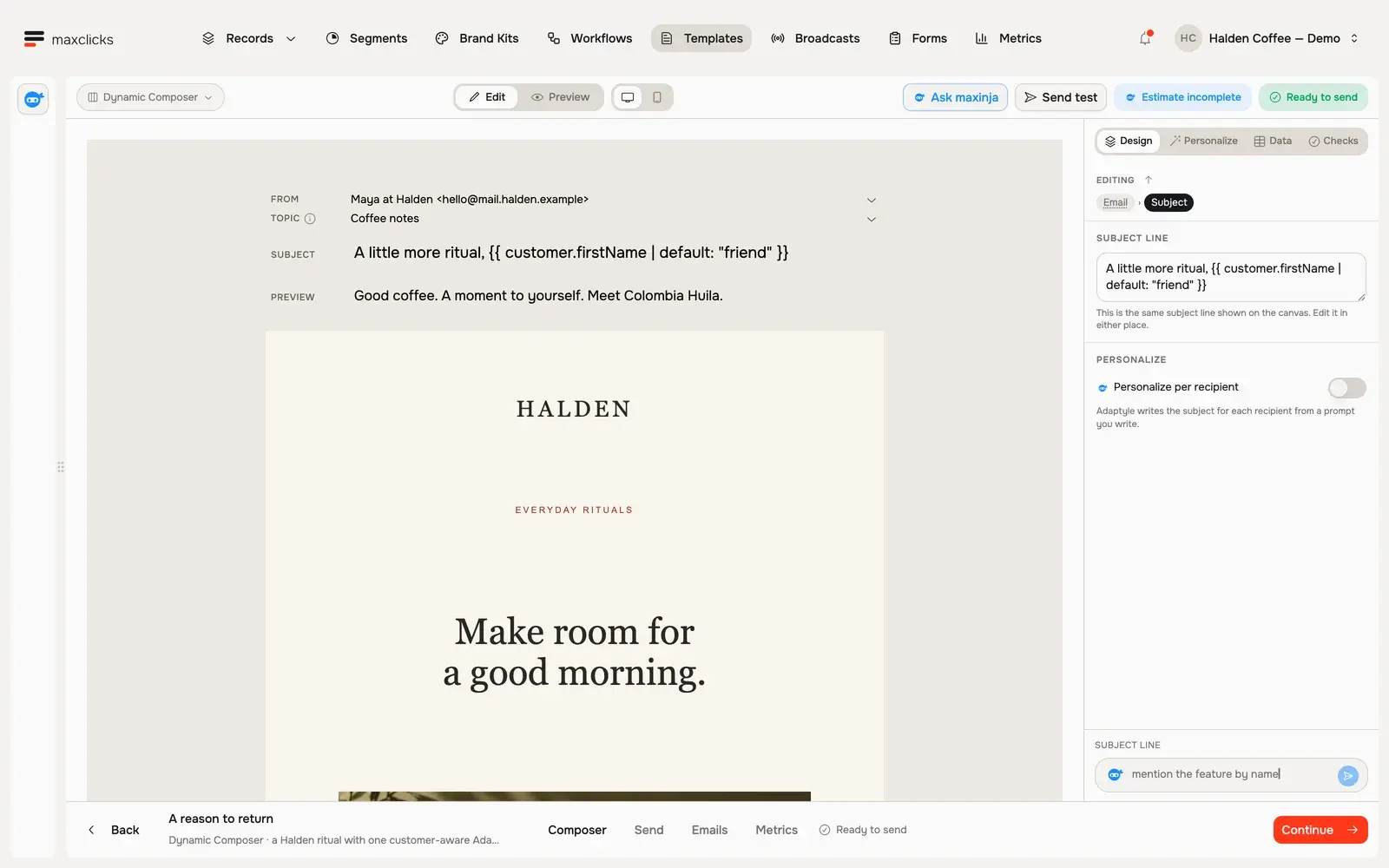
The Dynamic Composer arranges blocks across columns, and MJML compiles them into HTML that renders consistently across email clients, so you do not maintain the markup yourself. It is the only visual editor that carries preview text and links on images.
Walkthrough steps
Tour the Dynamic Composer: inspect the preview, open Data to see the selected Customer record, then return to the authored email. Light shows an existing generated variant for Priya; dark also demonstrates Base preview. No new AI generation or send is performed in this tour.
Plain Composer
The Plain Composer builds a flat, block-based email that is sent as plain HTML rather than compiled from MJML, with minimal styling, closer to a message typed in Gmail. Reach for it when you want an email that reads as personal rather than designed. It has no preview text and no links on images.
MJML Code
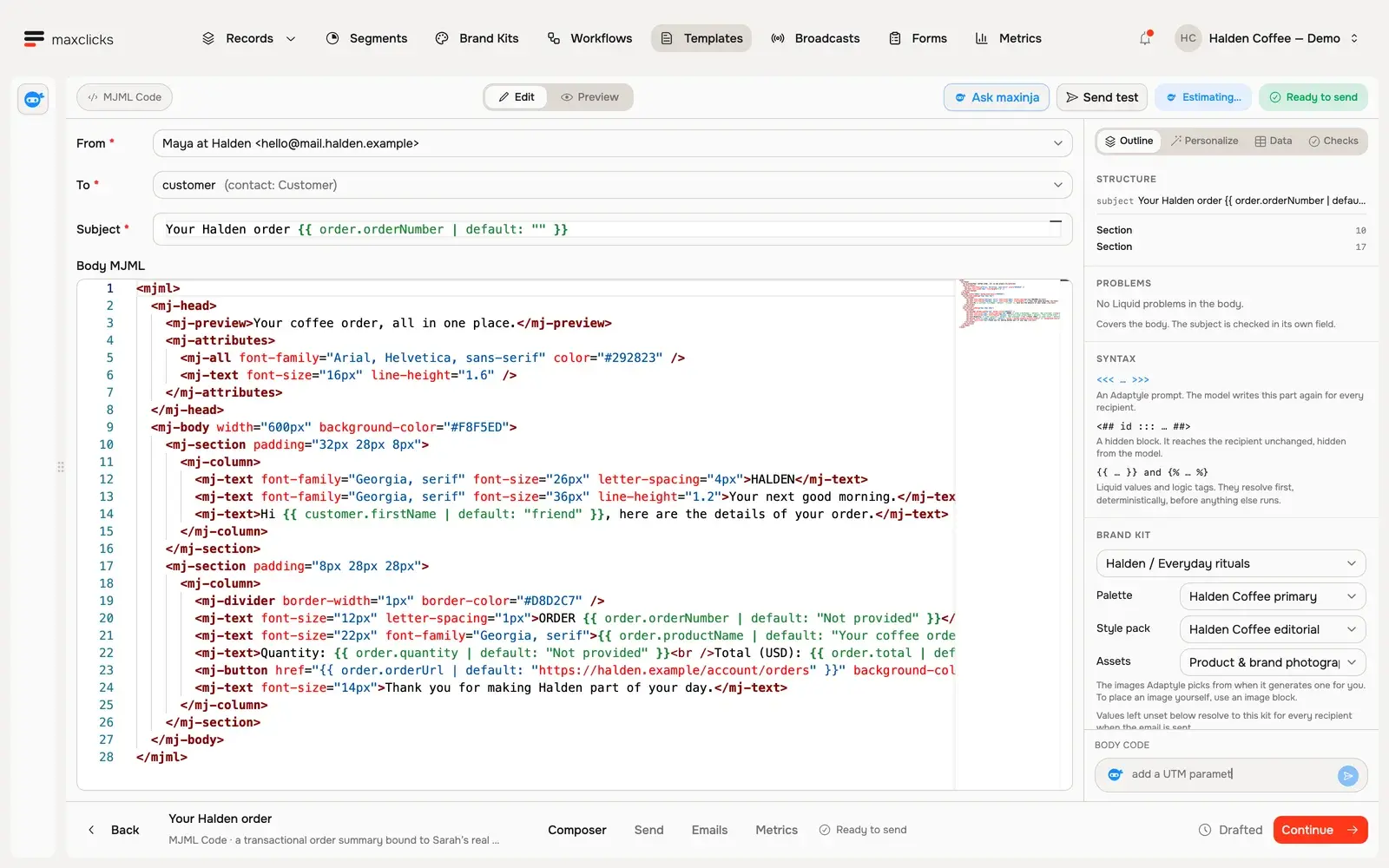
Write MJML directly when you want to hand-tune the markup while keeping MJML's responsive compilation. This suits someone comfortable with MJML who needs a structure the block canvas does not expose. You still get responsive HTML out, but you own the markup.
Walkthrough steps
Open the MJML code editor and rendered preview. Inspect the real customer and order bindings in Data: Sarah’s recorded order HD-1044, quantity one and total USD 24. Return to the code. No send is performed.
HTML Code
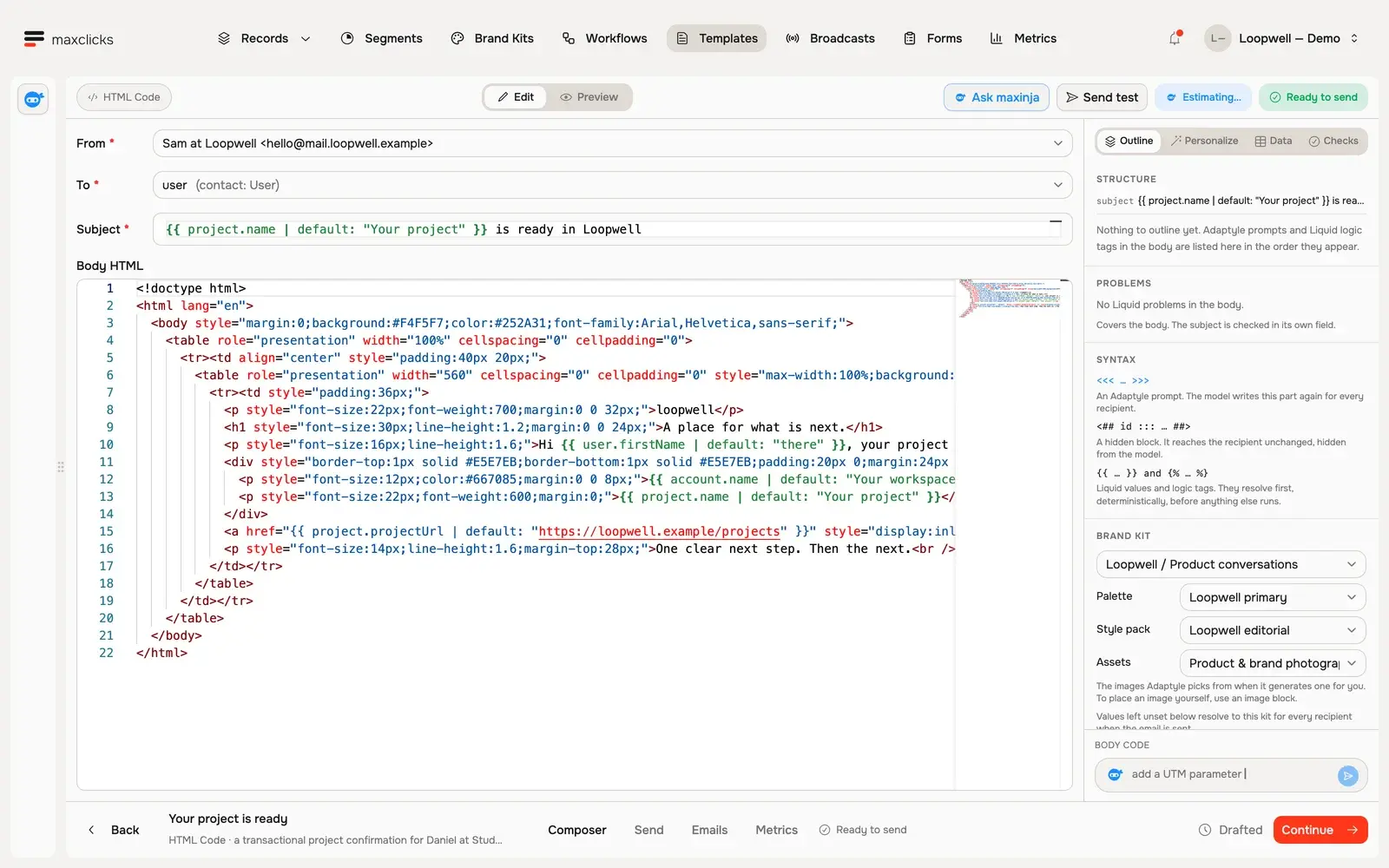
HTML Code is for pasting or writing a complete HTML email by hand. Choose it when you have a design built elsewhere, or a very specific layout you want to control down to the markup. You are responsible for how it renders across clients, so test it in more than one inbox.
Walkthrough steps
Inspect authored HTML beside its rendered email. Open Data to see the selected user, project and account: Daniel, Autumn launch and Studio North. Return to the HTML. No send is performed.
Switch editors
Switching is one-way. Each switch is permanent for that email and cannot be undone: to get the previous editor back you have to create a new email. Pick deliberately at creation, and switch only when you are sure.
- Open the switch control
Use Switch editor in the composer. Only the visual editors offer it. The code editors have no switch control at all.
- Pick the destination
From the Dynamic Composer you can move to MJML Code or to the Plain Composer. From the Plain Composer you can move to HTML Code. Nothing converts back to a visual editor, and nothing converts HTML back to MJML.
- Read the confirmation
maxclicks asks you to confirm each switch and spells out what it costs, including that the change is permanent. Read it before you accept.
Preview with sample data
The composer shows a live preview beside your content so you see the rendered email as you edit. Because a real email personalizes against a contact and its data, the preview needs values to render those personalized parts against. Those values are the sample data.
Where sample data lives
Sample data lives behind the Data & Recipient button in the composer. The panel opens on a Variables list showing the recipient and every data property the email expects, with a value control beside each record property. A button in its header switches between that list and Edit as JSON, a code view of the whole sample.
The default is a real record, not an invented one
For a contact or object property, the composer binds a real record from your space as soon as you open the email, taking the first one it finds in that schema. Use the control beside the property to search for and switch to a different record. Event properties are never bound for you, so pick one yourself.
This matters for what you see: the preview shows a real person's data, so a field that renders empty may be empty on that record rather than broken in your template. Switch to another record to tell the two apart.
When there is nothing to bind
If a schema holds no records at all, the control beside the property becomes Generate and maxinja writes a sample value that fits it. In the Edit as JSON view, Generate sample data by AI does the same for the whole payload and takes an optional prompt, such as "a user who signed up today, include a welcome offer code". Both are AI actions and draw on your credits. That view also takes JSON you type by hand.
The preview and any test send render against whatever the sample data holds. If a personalized field looks empty, an unbound property is the usual cause.
- Open the data panel
In the composer, click Data & Recipient. It opens on the Variables list, with the recipient at the top and one row per data property.
- Set each property's value
Pick a record for each contact and object property, and an event for each event property. Where a schema has no records yet, click Generate. Switch to Edit as JSON to write the sample by hand or to generate the whole payload from a prompt.
- Watch the preview update
The live preview re-renders against the sample data. Confirm your variables and personalization resolve as intended before you send a test or schedule the email.
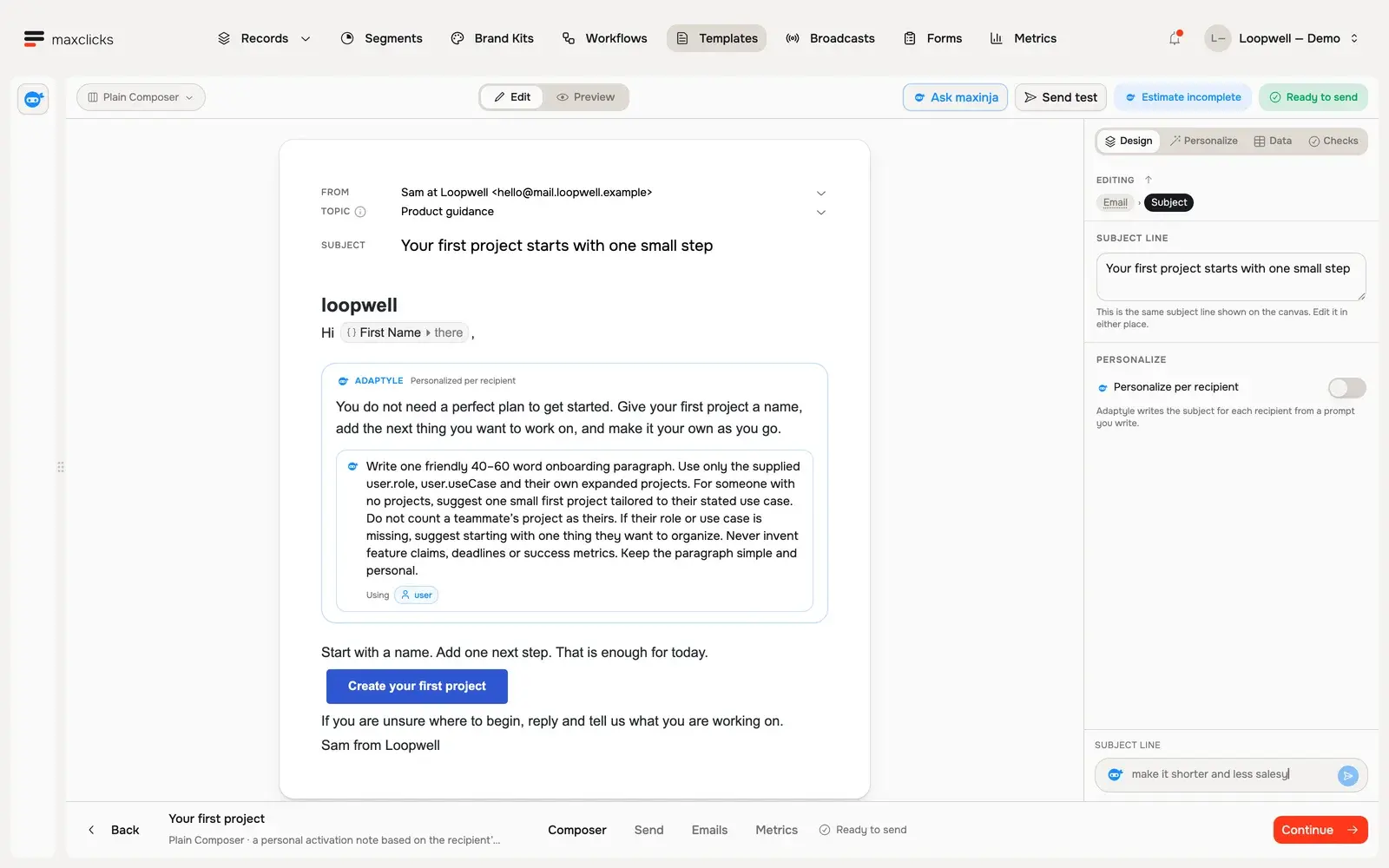
Walkthrough steps
Inspect the Plain Composer, open its existing generated Maya preview, review the user binding in Data, and return to the authored paragraph and its Adaptyle instructions. This tour uses an already generated preview and does not send an email.
Thumbnails
maxclicks generates a thumbnail of each email automatically. The thumbnail is a small rendered image of the content, which identifies a message at a glance without opening it. You do not create the thumbnail yourself: it is produced from the rendered content and refreshes as the content changes.
What stays the same across editors
The editor you choose changes how you author the email, not what the composer does around it. These parts of the composer behave identically in all four:
- Personalization. Liquid variables and maxinja personalization prompts work everywhere.
- The live preview and sample data. The preview renders against your sample data in every editor.
- The thumbnail. maxclicks generates it from the rendered content regardless of editor.
- The footer. maxclicks injects the brand footer, company address, socials, and, for marketing mail, an unsubscribe link into the finished send. You do not add these by hand anywhere.
- Test sends. You can send yourself a test from any editor to check the real render.
The format does change what the email can carry. Preview text lives in the MJML content, so the Plain Composer and HTML Code have none, and the Plain Composer has no links on images either. Switching from the Dynamic Composer to the Plain Composer drops both permanently. Since no switch can be undone, weigh that before you move.
Which editor should I pick
For most people, most of the time, the Dynamic Composer is the answer: responsive output, no code, preview text, and every personalization feature available. Move to MJML Code when you need control the visual canvas does not offer, to the Plain Composer when you want a message that reads as personally typed, and to HTML Code when you are bringing a design built elsewhere. Because the choice is hard to reverse, make it at creation rather than switching later.
Frequently asked questions
Can I switch editors after I start writing?
Only forward, and only once per step. Every switch is permanent for that email: maxclicks warns you before it happens, and the only way back to the previous editor is a new email. Moving from the Dynamic Composer to the Plain Composer also drops your preview text and any links you set on images.
What is the difference between MJML and HTML here?
MJML is an email markup language that compiles to responsive HTML which renders consistently across email clients. HTML is written and sent directly, giving you full control and full responsibility for cross-client rendering. MJML is the safer default for most emails.
Why is my preview showing empty personalized fields?
A property has no value behind it, or the record bound to it has that field empty. Open Data & Recipient, confirm every property has a record bound, and switch the bound record to one you know is populated. Where a schema has no records at all, use Generate.
Where does the thumbnail come from?
maxclicks generates it automatically from the rendered content and refreshes it as the content changes. You do not create or upload it yourself.
Do personalization and Liquid work in every editor?
Yes. Liquid variables and maxinja personalization prompts work in all four editors. See personalize with Liquid and Adaptyle.
Which editors have preview text?
Only the MJML ones: the Dynamic Composer and MJML Code, where it lives in the MJML itself. The Plain Composer and HTML Code have none, and the Plain Composer cannot put a link on an image either.
Did this article answer your question?