Loading the guide…
Build your first workflow
Learn how to lay out a workflow: pick a trigger, add and connect steps, understand how data flows, and let maxinja build it for you.
On this page
A workflow is an automation you build as a graph of steps: something happens, then maxclicks runs a sequence of logic and actions in response. Where a broadcast is a one-time send, a workflow is the tool for anything that repeats or reacts: welcome a new signup, follow up when a cart is abandoned, tag a contact when they enter a segment. This article covers the canvas, the six kinds of trigger that start a run, how to add and connect steps, how data grows as a run moves through them, and how to let maxinja lay the whole thing out for you.
What a workflow is
A workflow is a directed graph. Every run enters at a trigger, then follows the links you draw from step to step until it reaches the end or a step routes it down one path. maxclicks gives you 20 functional step types across five categories, so a single workflow can react to an event, look up related records, branch on a condition, wait, and then send an email or call an external service.
Workflows live under Workflows in the top navigation. The list is where you create, duplicate, pause, resume, and delete them. Opening one takes you into its canvas editor.
Tour the canvas
The canvas is where you assemble the graph. Each step is a node you can place and connect, and each node opens a sidebar for its configuration.
- The canvas holds your steps and the links between them. You arrange nodes freely; the layout is saved with the workflow.
- A per-step sidebar opens when you select a node. It holds that step's configuration: its trigger schema, its condition, its email content, whatever the step type needs.
- An available-data panel shows what data has accumulated by the time a run reaches the selected step. Use it to see which fields you can reference in a condition or an email.
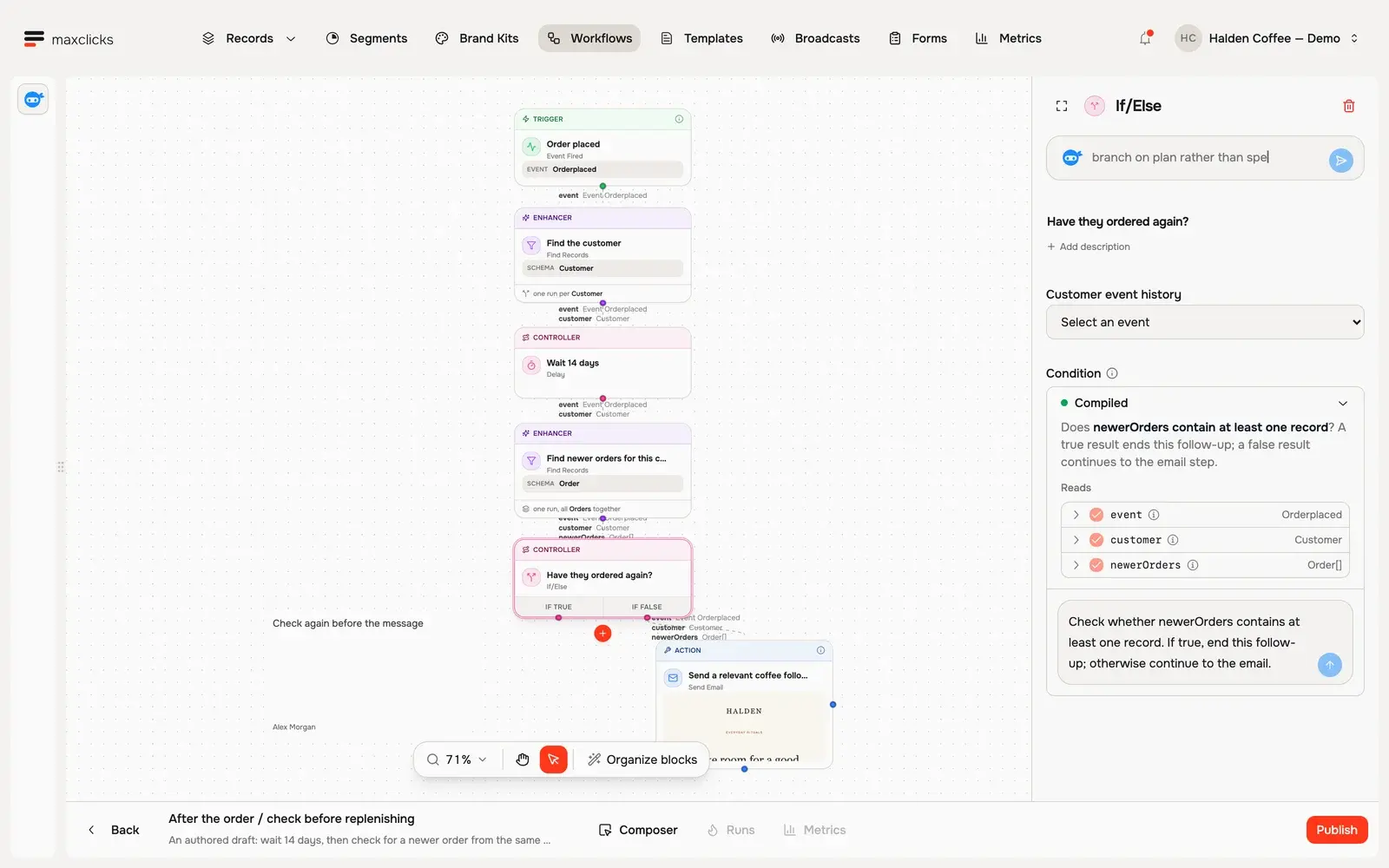
A Runs tab and a Metrics tab sit beside the editor, both greyed out until you publish the workflow for the first time. The Runs tab is where you watch and debug live runs, covered in understand workflow runs and fix failures.
Start with a trigger
Every workflow begins with at least one trigger. A trigger is where runs start, so it never has an incoming link. maxclicks offers six trigger types, each reacting to a different kind of change.
| Trigger | Starts a run when |
|---|---|
| Scheduled Timestamp | A fixed timestamp arrives. It fires once, or immediately on publish if you set no timestamp. There is no recurrence. |
| Record Created or Updated | A contact or object in a chosen schema is created or updated, optionally filtered by a segment or condition. |
| Record Deleted | A record in a chosen schema is deleted, optionally filtered by a condition. |
| Event Fired | An event fires on a chosen event schema, such as Purchase Completed, optionally filtered by a condition. |
| Email Event | One of your emails reaches a lifecycle event you select, such as opened, clicked, or bounced. |
| Incoming Webhook | An external system calls the workflow, matching a reference you configure. |
A few trigger details are worth knowing up front:
- Record triggers bind to exactly one schema, either a contact schema like Customer or an object schema like Order. You can attach a segment (for contacts) or a condition to narrow which records start a run. A conditioned "created or updated" trigger uses entered-criteria semantics: on an update it fires only when the record moves from not matching to matching, not on every save. This is explained further in use segments in broadcasts and workflows.
- Scheduled Timestamp is a one-shot trigger, not a recurring schedule. It arms once each time you publish.
- Event Fired and Incoming Webhook only start runs while the workflow is published and unpaused. An incoming webhook also requires the request body to match the shape you configure.
Add steps
With a trigger in place, you build the response by adding steps. Steps fall into five categories.
- Triggers start runs. You have already added one.
- Enhancers add data to the run without external effects: Find Records looks up contacts or objects from your database, Set Value computes a value, Query runs a generated database query, AI runs a prompt over the run's data on a model you pick, and For Each iterates over an array.
- Controllers route or pause a run: If/Else sends it down a true or a false path, Switch routes it down one of any number of named case paths, and Delay holds it for a duration or until a moment.
- Actions produce external effects: Create or Update Records, Delete Records, Fire Event, HTTP Request, and Send Email.
- Decorators are Note annotations on the canvas, with no runtime role.
- Add a step to the canvas
Use the add control on the canvas to place a new node. A brand-new step starts as an empty placeholder with no type chosen yet.
- Choose its type
Pick the step type from its sidebar, such as Send Email or Find Records. The sidebar then shows the configuration that type needs.
- Configure it
Fill in the step's settings: the schema it acts on, the condition it evaluates, or the email it sends. You can leave a step partly configured and return later, but an empty placeholder blocks publishing until you finish or delete it.
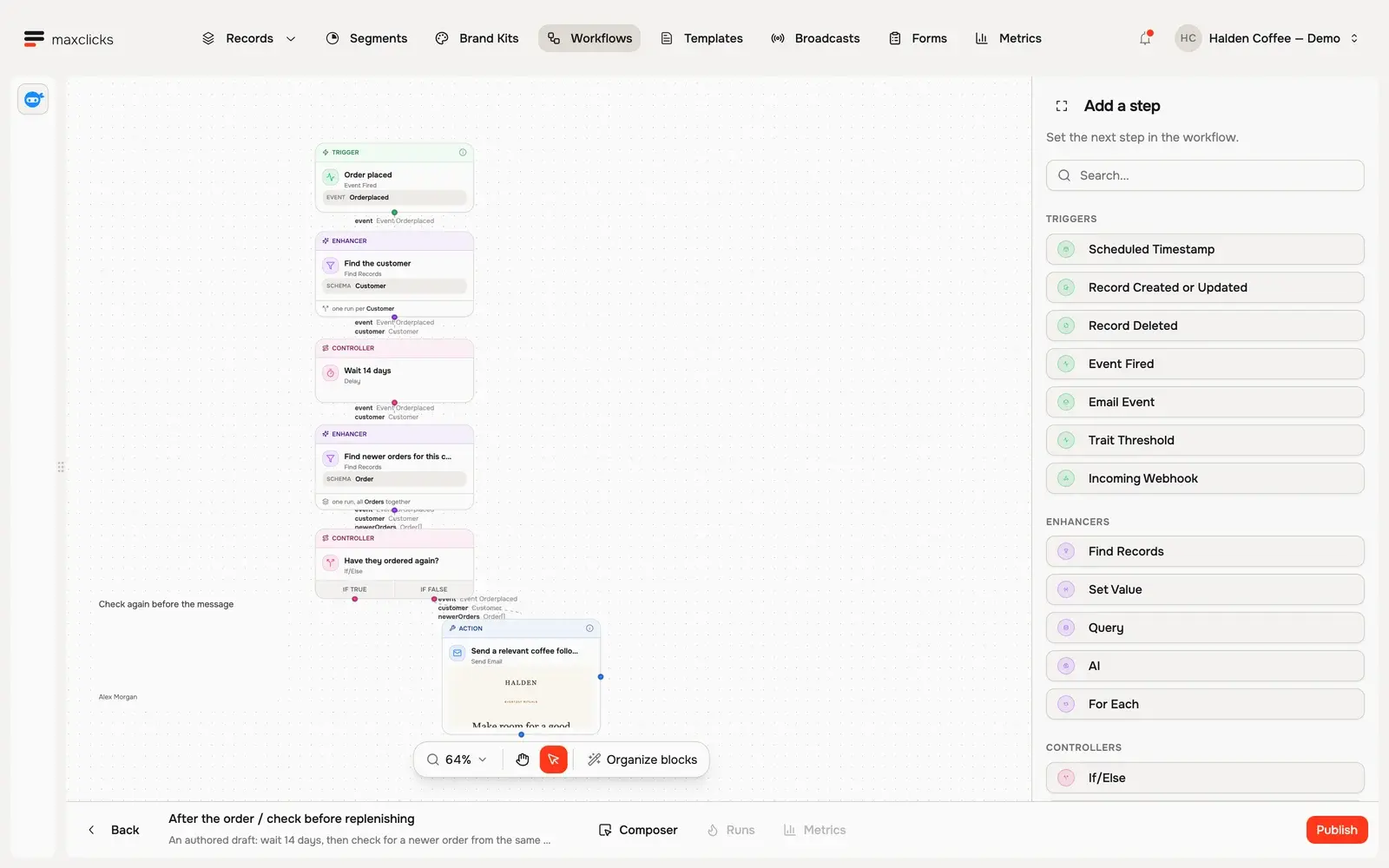
Walkthrough steps
Inspect the draft post-purchase workflow. Open its Orderplaced event trigger, 14-day delay, compiled condition checking newer orders, and configured email step. The true branch ends the follow-up; the false branch continues. This draft is not published by the tour.
Connect steps with links
Steps do nothing until they are connected. Each step has one or more ordered slots, the output points a run can leave through, and you draw a link from a slot to the next step.
- A simple step has one slot, so its run always continues to whatever you link that slot to.
- A branching controller has several slots. If/Else has one for the true path and one for the false path, and Switch has one per case; a run leaves through exactly the one its condition selects.
- Each slot can have at most one outgoing link. Every step except a trigger or a Note needs at least one incoming link, or it can never run.
How data flows through a run
A run carries a growing bag of data as it moves through the graph. The trigger seeds the data with what set the run off, such as the contact that was created or the event that fired. Each step then declares what data it expects to receive and what it adds: a Find Records step adds the records it found, a Set Value step adds the value it computed. By the time a run reaches a Send Email step, the data holds everything the earlier steps contributed, and you personalize the email from it. Records in the data are references, not frozen snapshots, so every step that consumes a record re-reads it fresh from the database, meaning a contact's fields always reflect their current state at that point in the run. The available-data panel shows you exactly what is in scope at any step you select.
Let maxinja build it for you
You do not have to place every node by hand. maxinja can build an entire workflow end to end: the step graph, each step's configuration, the links between steps, and the canvas layout, then publish or pause it for you. Describe the automation you want in plain language, such as "when a customer completes their first purchase, wait two days, then send a review request", and maxinja assembles the workflow. You review it on the canvas and refine by continuing the conversation.
This is often the fastest way to start. Build a rough version with maxinja, then open the sidebars to adjust conditions, swap an email, or add a branch by hand. maxinja is also the only way to generate the logic behind conditions and delays, since maxclicks never exposes the raw generated logic. See meet maxinja, your AI assistant for how the assistant works.
Once your graph has a trigger, connected steps, and no empty placeholders, you are ready to publish it. That step, along with pausing, versioning, and duplicating a workflow, is covered in publish, pause, and version a workflow.
Frequently asked questions
Does a workflow run as soon as I build it?
No. A workflow does nothing until you publish it. Editing the canvas marks the workflow as having unpublished changes; only publishing makes the current graph live and lets triggers start runs. Pausing later stops new runs without deleting your work.
Can a workflow have more than one trigger?
Yes. A workflow needs at least one trigger, and it can have several, so different kinds of change can start a run through the same graph. Each trigger seeds the run with its own starting data.
Why can't I publish my workflow?
Publishing validates the whole graph. Common blockers are an empty placeholder step with no type chosen, a step with no incoming link, a cycle in the links, or a required field left blank. Fix the step the editor flags, then publish again.
What is the difference between a workflow and a broadcast?
A broadcast is a single send to a filtered audience at a chosen time. A workflow is an ongoing automation that reacts to triggers and can find records, branch, wait, and act. Use a broadcast for a one-off message and a workflow for anything recurring or event-driven.
How do I reference a contact's fields in a workflow email?
Whatever data the run has accumulated by the send step is available to personalize the email. The available-data panel shows the fields in scope, and because records are re-read fresh at each step, their values reflect the contact's current state.
Did this article answer your question?