Loading the guide…
Import your contacts from a CSV file
Learn how to prepare a CSV, run an import, track its progress, and understand how maxclicks matches contacts.
On this page
Importing a CSV is the fastest way to bring an existing list into maxclicks. You upload a file, maxclicks reads it row by row against your contact schema, and each row becomes a contact. The import runs in the background: keep working while it processes and watch its progress live.
This article covers preparing the file, running the import, handling failures, and how maxclicks decides whether a row is a new contact or an update to an existing one.
Before you import
An import succeeds or fails on how your file is prepared. The single rule that trips people up is the header rule.
The quickest way to get the headers right is to let maxclicks write them. Open the import dialog and choose Download sample CSV. The file arrives with a header row of your schema's exact attribute keys and one example row underneath: delete the example, paste your data in, and upload it back.
A file can be up to 50 MB and 500,000 rows.
If you would rather prepare the file yourself:
- Open your schema in Settings, then Schemas, and note the exact key of each attribute you want to fill. Base keys include
email,firstName,lastName,phone, andtags. - Set your CSV headers to those exact keys.
- Put one contact per row. Leave a cell empty for any value you do not have.
- Include an
emailvalue for every row you want to be able to email later. It is your primary identifier. - Separate multiple values in one cell with a semicolon.
tags,subscriptions, and any list attribute are split on;, sovip;ukis two tags. A comma is part of the value, not a separator.
You can only import contacts into a contact schema. Attributes maxclicks manages itself, like source, createdAt, and updatedAt, are set automatically and ignored if you include them.
Start the import
You import from the records table for the schema you want to fill.
- Open the schema's records
Open Records in the top bar and choose the contact schema you are importing into, such as Customers. You can also start an import from the schema in Settings, then Schemas.
- Choose to import a CSV
Select the CSV import action and upload your prepared file. The dialog also offers Tags, added to every contact in the file, and a Subscribe to email by default checkbox, unchecked to start with. Checking it subscribes the contacts this import creates. Only check it if you have explicit consent to email everyone in the file.
- Confirm and run
Confirm the import to start it. The job runs in the background, so you do not have to keep the page open.
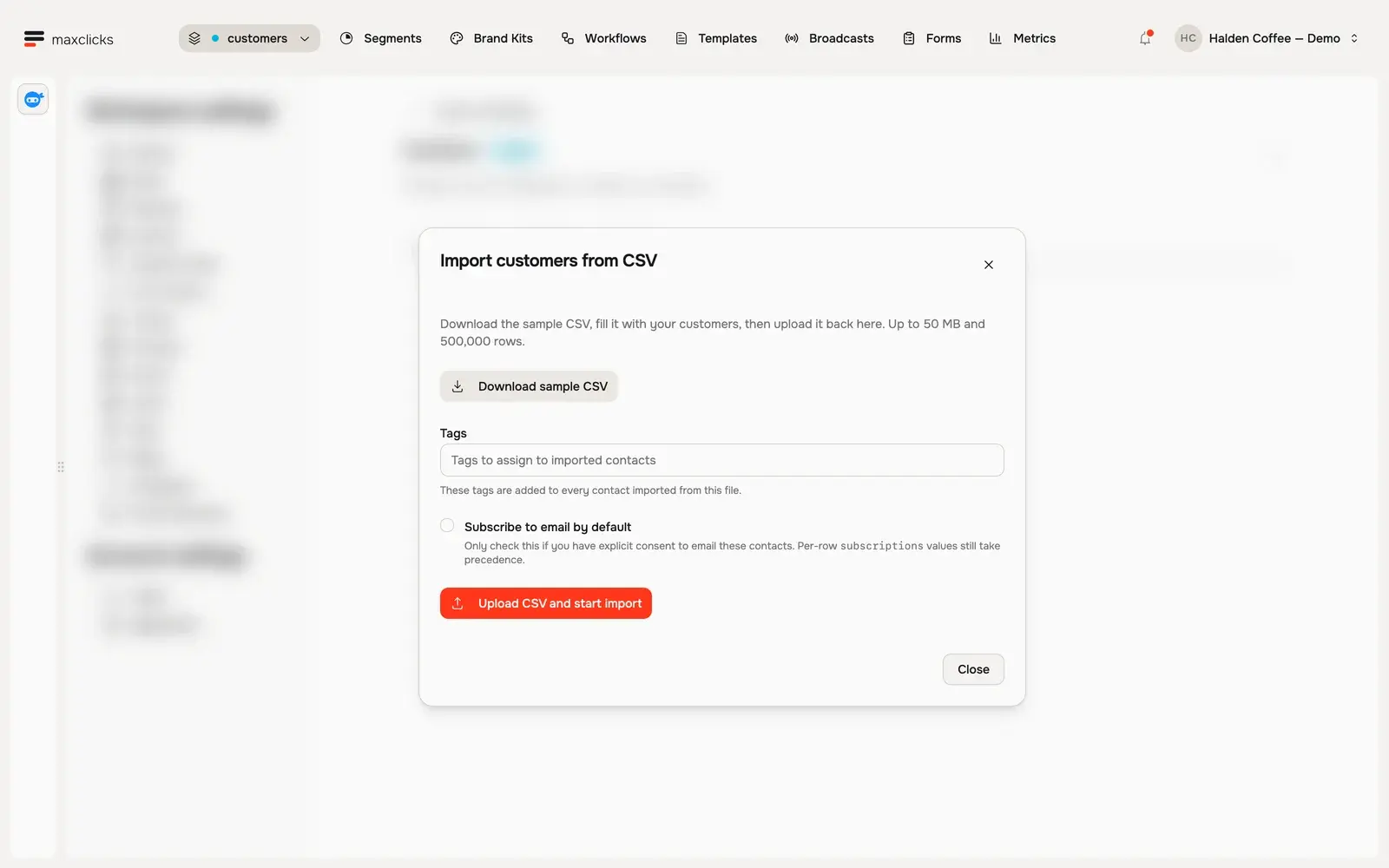
Walkthrough steps
Open the schema’s Import tab and Start import. Inspect sample CSV download, optional tags, email subscription defaults and the upload control. This walkthrough stops before uploading; the separate import-result image shows the actual completed local import.
Track progress and handle failures
Because imports are asynchronous, maxclicks reports on them as they run and updates in real time.
- Watch the progress
The import shows live progress as it works through your rows. Because everything updates over a live connection, the count climbs on its own without a refresh.
- Cancel if you need to
If you spot a problem, you can cancel an import while it is still running so it stops processing further rows.
- Review the failure log
When the import finishes, maxclicks lists the first 20 failed rows with the reason for each. Choose Download full failure log for the rest: the inline list is a sample, not the whole set. Common causes are a missing required value or a value that does not fit the attribute's type. Fix those rows and re-import only them.
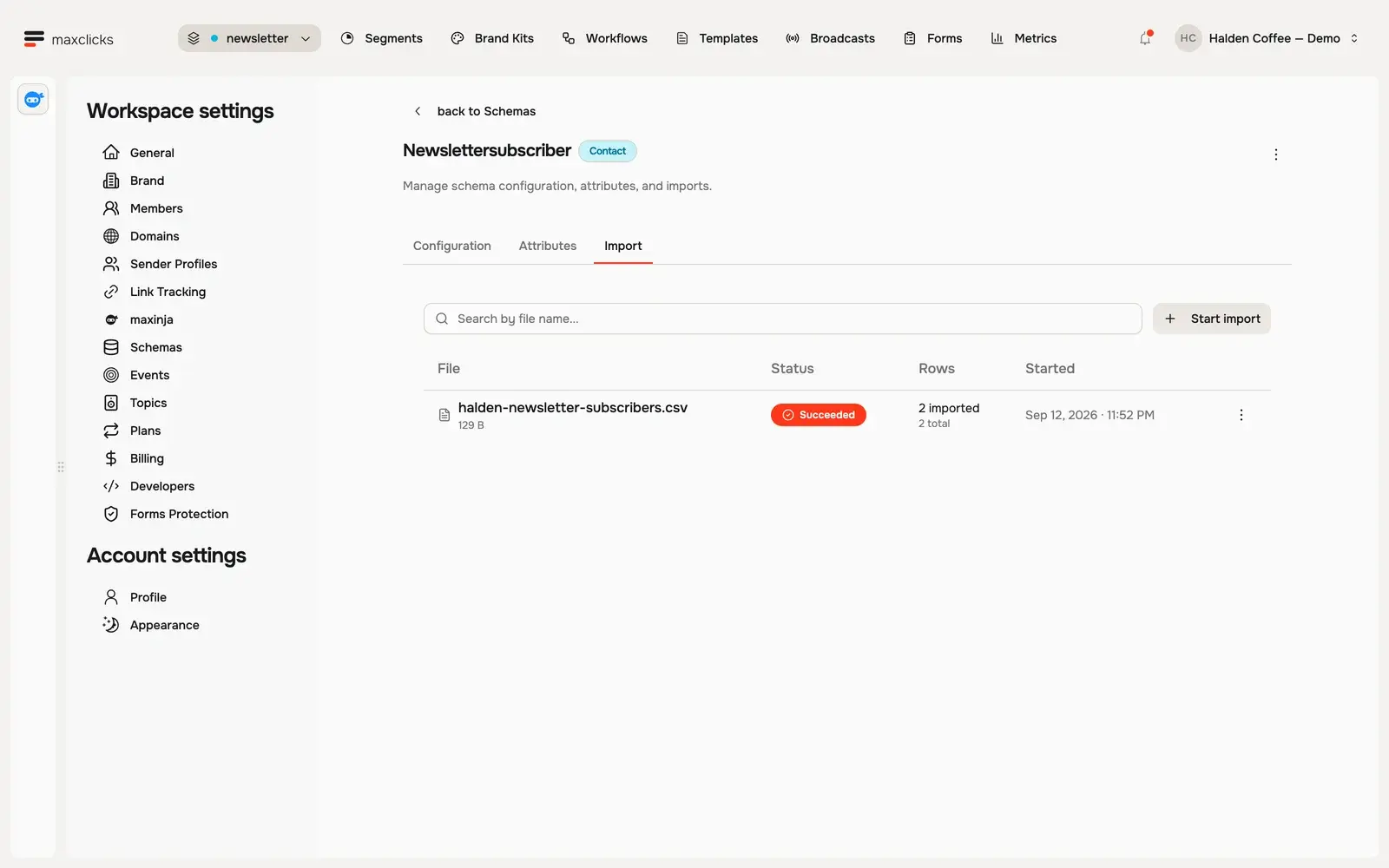
A failed row does not stop the import. maxclicks processes the rest of the file and collects every failure in the log, so one bad row never blocks the good ones.
How maxclicks matches contacts
An import is an upsert, not a blind insert. For each row, maxclicks decides whether it matches a contact you already have, and updates that contact, or creates a new one. It uses a fixed identity order:
- If the row has an
id(the maxclicks contact ID), match that exact contact. Anidthat matches nothing is reported, never created. - Otherwise, if the row has a
userId, match the contact with the sameuserId. - Otherwise, if the row has an
email, match a contact with that email that has nouserId. - Otherwise, if the row has a
phone, match a contact with that phone that has nouserIdand noemail. - Otherwise, create a new contact.
For most lists, matching happens on email, so re-importing an updated file updates your existing people instead of duplicating them. When an update would clash with another contact's identifier, maxclicks keeps the safe value, applies the rest of the row, and reports the skipped field, so check the results rather than assuming every value landed.
Custom attribute values are merged into the contact. An empty cell is skipped rather than applied, so it leaves the existing value untouched. An import can set and change values, but it can never clear one.
Consent and imported contacts
Importing a list has consent implications, so handle it deliberately. Three rules decide what an imported contact is subscribed to.
- A row's own
subscriptionsvalue always wins. Set it toemailto subscribe that person, and the checkbox is ignored for that row. - If the row leaves
subscriptionsempty, a contact the import creates is subscribed to email only when Subscribe to email by default is checked. Leave the box unchecked and new contacts arrive subscribed to nothing. - A contact the import matches keeps the consent it already had, whatever the checkbox says.
Only import people who have genuinely agreed to hear from you. If you are unsure about part of your list, leave those rows out of the file and collect consent first.
Imported contacts are marked with the source import automatically, and every consent state is recorded in the contact's audit trail for compliance. To learn more about consent overall, see understand transactional vs marketing.
Once your contacts are in, you can group them into audiences and start sending. Read add and edit contacts to manage them by hand, and create a segment to build filtered audiences.
Frequently asked questions
Why did a column of my CSV not import?
Almost always because the header did not exactly match an attribute key. maxclicks has no column-mapping step, so Email or email_address will not fill the email attribute. Use Download sample CSV in the import dialog to get a file with the right headers already in it.
Can I import contacts as unsubscribed?
Yes. Leave the Subscribe to email by default checkbox unchecked and leave the subscriptions column out of the file, and the contacts the import creates arrive subscribed to nothing. You can then capture their consent through a form.
Will re-importing create duplicate contacts?
No, as long as your rows carry a consistent identifier. maxclicks matches on id, then userId, then email, then phone, and updates the matching contact instead of creating a new one. Duplicates usually appear only when the identifier differs between imports.
Can I cancel an import that is already running?
Yes. You can cancel an import while it is in progress, which stops it processing any further rows. You can then fix your file and import again.
What happens to rows that fail?
They are collected in a failure log with the reason for each, and the rest of the import continues. The page shows the first 20; Download full failure log gives you every one. Fix the reported rows, for example a value that does not match the attribute type, and re-import only those.
Do imported contacts count toward my plan?
Yes. Every contact is a record, and records (contacts and objects alike) count toward your plan's included allowance. Importing a large list increases your record count, so keep that in mind on larger imports.
Did this article answer your question?