Loading the guide…
Send your first broadcast
Learn the full path to sending a broadcast, from choosing an audience to scheduling the send.
On this page
A broadcast is a one-time email to a filtered audience from one contact schema: a newsletter, an announcement, a promotion. This guide walks the whole path once, from choosing who receives it to scheduling the send. For the deep reference on every option, read create and send a broadcast.
Before you start
Two things need to be in place for a broadcast to reach real inboxes.
- A verified sending domain. A broadcast leaves from your own domain, and nothing sends from an unverified one. Follow verify your sending domain if you have not yet.
- Contacts to send to, with email consent. A broadcast is marketing mail, so it only reaches contacts who are subscribed to the email channel.
Create the broadcast
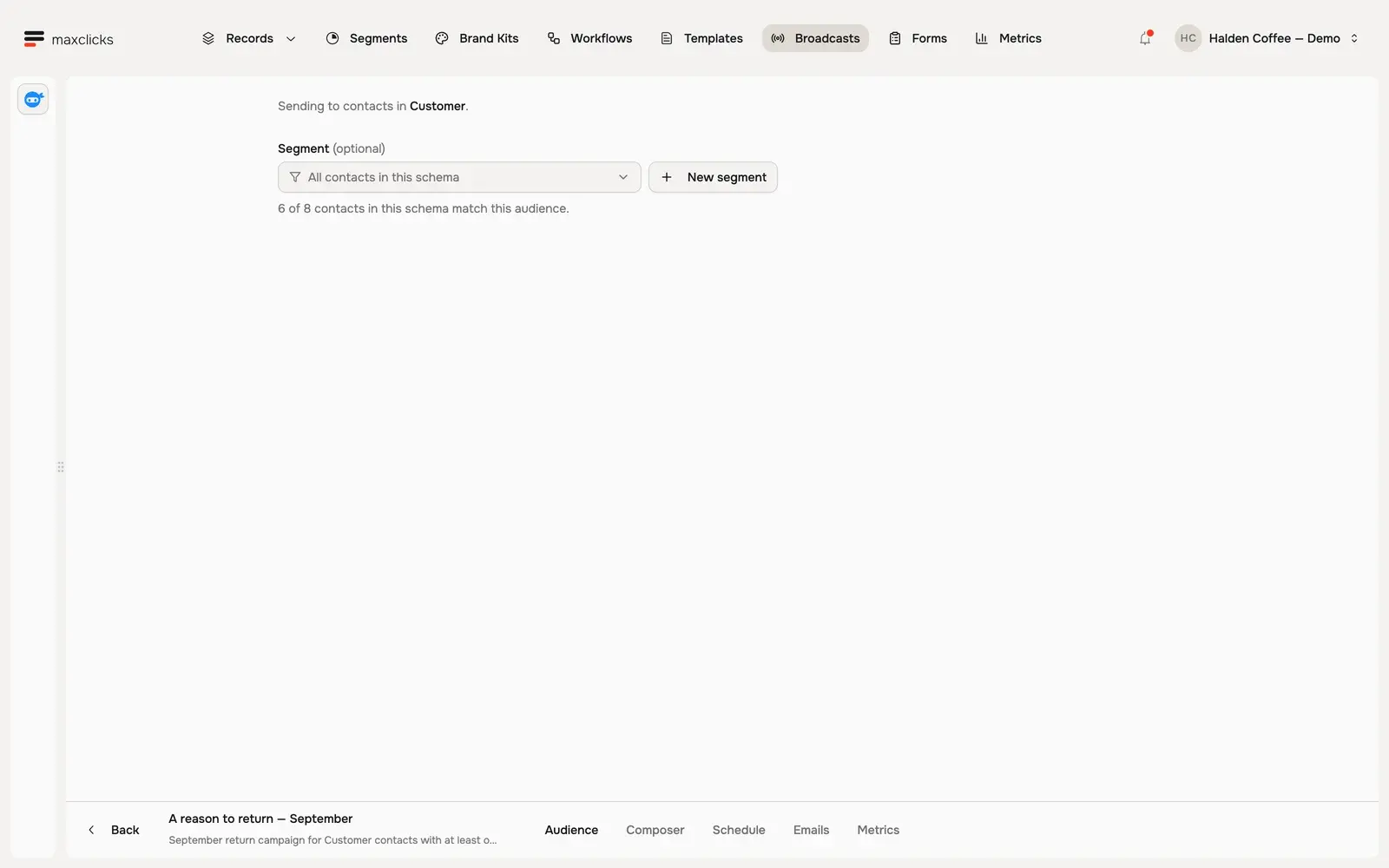
Open Broadcasts from the top navigation and create a new broadcast. maxclicks asks who it is for first: pick the contact schema whose people you want to reach, such as Customer, and optionally a segment. Then choose a starting place for the email. The broadcast is created as an untitled draft, so rename it from the broadcast page once it opens.
Choose your audience
A broadcast targets one contact schema. Within it, you pick who receives the email.
- Pick a segment, or reach everyone
Pick a Segment to narrow the audience, or leave it empty to reach every contact in the schema. A segment is a saved audience you can reuse, and New segment builds one without leaving the broadcast. Create a segment covers it in full.
- Check the live count
maxclicks shows a live count of matching contacts as you refine the audience. Use it as a sanity check before you commit: a count of zero means no one will receive the email, and a count far larger than expected means your filter is too broad.
The count is an estimate of who matches. The actual number of sends can be lower, because contacts without an email address or without email consent are filtered out when the broadcast runs.
Write the email
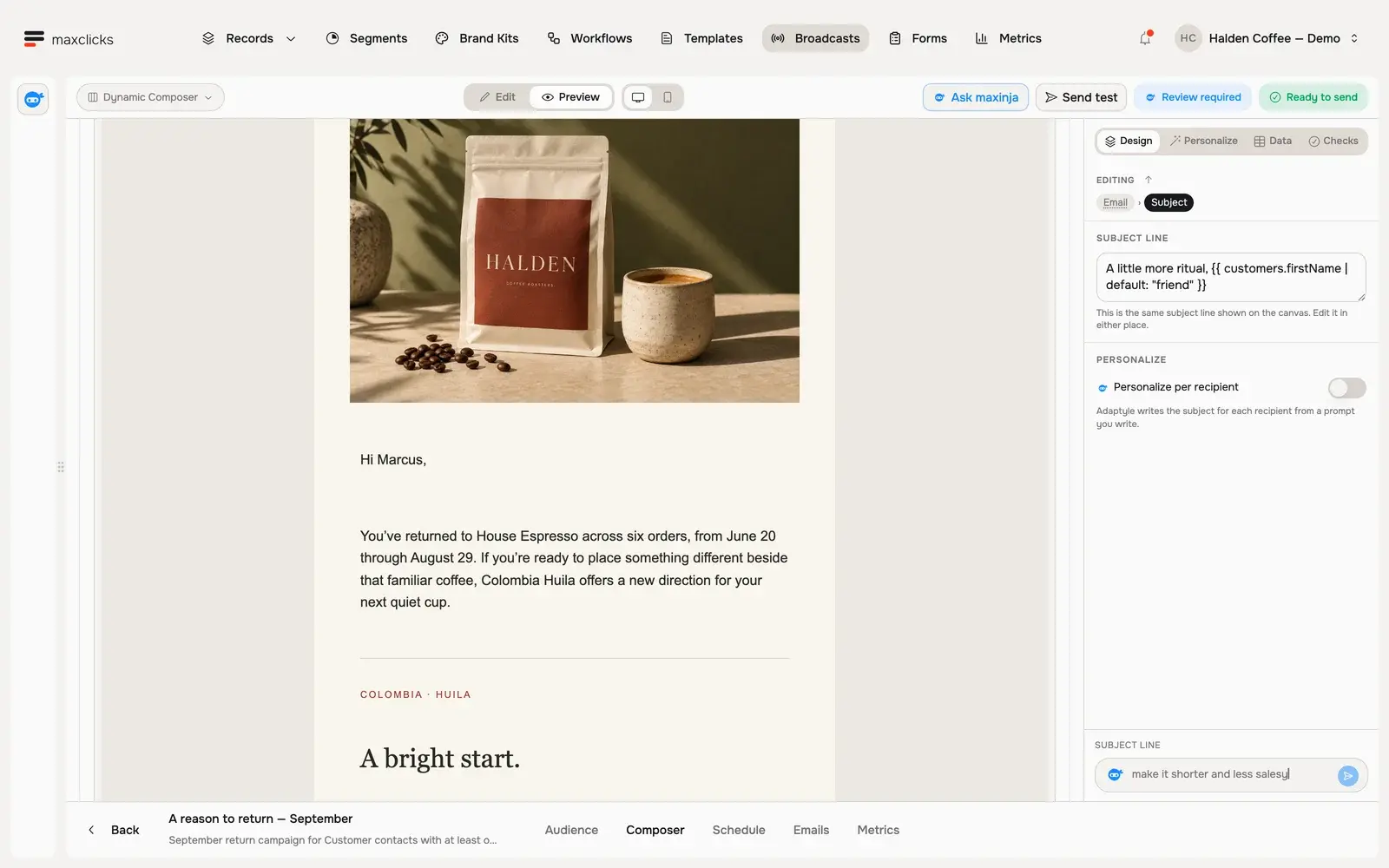
The broadcast opens the shared email composer. Compose your subject, preview text, and body, then confirm the sender. The composer offers four editor modes and a live preview; choose an editor mode explains which one fits your content.
You can personalize the email with Liquid variables and maxinja personalization prompts, covered in personalize with Liquid and Adaptyle. Evaluated attributes work too: tick the computed fields you need in the composer, and maxclicks computes them per contact as it renders each email.
Before you schedule, send yourself a test email from the composer. It leaves from the same verified domain the broadcast will use, and shows you the finished render in a real inbox.
Schedule and send
When the audience and content are ready, choose when the broadcast goes out.
- Choose a time
Select Send now to start immediately, or Schedule for later to pick a future date and time. Choose Save as draft if you want to come back later.
- Confirm the send
Review the audience count and the sender one last time, then confirm. Once sending starts the schedule locks: maxclicks refuses a schedule change with "Broadcast has already started sending". The audience is resolved at that same moment, so later edits do not reach a send in progress.
maxclicks resolves the audience at send time, renders a personalized email per contact, and sends each one individually. A render failure for a single contact does not stop the rest of the broadcast.
After the send
Each broadcast has a metrics tab with real delivery and engagement data: delivered, opened, clicked, bounced, and complained counts, aggregated live from actual email events. Watch it to gauge how the send landed. Track email performance explains what each metric means and how to act on it.
For everything this walkthrough skipped, including audiences you describe to maxinja in your own words and the full scheduling options, read create and send a broadcast.
Frequently asked questions
Do I need a verified domain to send a broadcast?
Yes. A broadcast leaves from your own verified domain, and nothing sends from an unverified one. Test emails are no exception, so verify your domain before you try either.
Why is the send count lower than the audience count?
The audience count estimates who matches your filter. When the broadcast runs, contacts without an email address or without email consent are removed, so the number actually sent can be lower.
Can I edit a broadcast after it starts sending?
No. Once sending begins, maxclicks refuses any schedule change, and the audience is already resolved. There is no retry either: a broadcast that fails partway cannot be resumed. Use Duplicate to get a fresh draft with the same audience and content, then send that.
Why are my evaluated attributes empty in the email?
The computed fields were not expanded in the composer. A contact read from the database carries only its stored attributes, so tick the evaluated attributes your content uses, then send another test.
Did this article answer your question?