Loading the guide…
Publish, pause, and version a workflow
Learn how publishing snapshots an immutable version, what the unpublished-changes indicator means, and how to pause, resume, and duplicate a workflow.
On this page
Building a workflow and running one are two separate acts. You edit the canvas as freely as you like, but none of it takes effect until you publish. Publishing snapshots the whole graph into an immutable version, and that version is what processes triggers. This article explains the publish-and-version model, the unpublished-changes indicator, how pausing and resuming differ from publishing, and how to duplicate a workflow to iterate safely. If you have not built one yet, start with build your first workflow.
Editing versus publishing
A workflow has two layers: the draft you edit, and the published version that runs. Every change you make on the canvas (adding a step, rewiring a link, editing a condition) lands on the draft. The live version keeps running exactly as it was until you publish again.
This separation is deliberate. Build progressively, leave steps half-configured, and experiment without any risk to automations already handling real contacts.
What publishing does
Publishing is the moment your edits become real. When you publish, maxclicks validates the whole graph, then snapshots everything into a new immutable version.
- Open the workflow and review it
Open the workflow from Workflows. Confirm the graph is complete: at least one trigger, every non-trigger step connected, and no empty placeholder steps left unconfigured.
- Publish
Use the Publish control. maxclicks validates the graph first. Errors block the publish and are flagged on the offending step; warnings do not block. A valid graph is snapshotted into a new version.
- Confirm it is live
After a successful publish, the unpublished-changes indicator clears and the new version becomes the one that starts new runs. Publishing also un-pauses the workflow if it was paused.
Validation blocks a publish when the graph has no trigger, contains a cycle, still has an empty placeholder step, or leaves a required field blank. Fix what the editor flags and publish again.
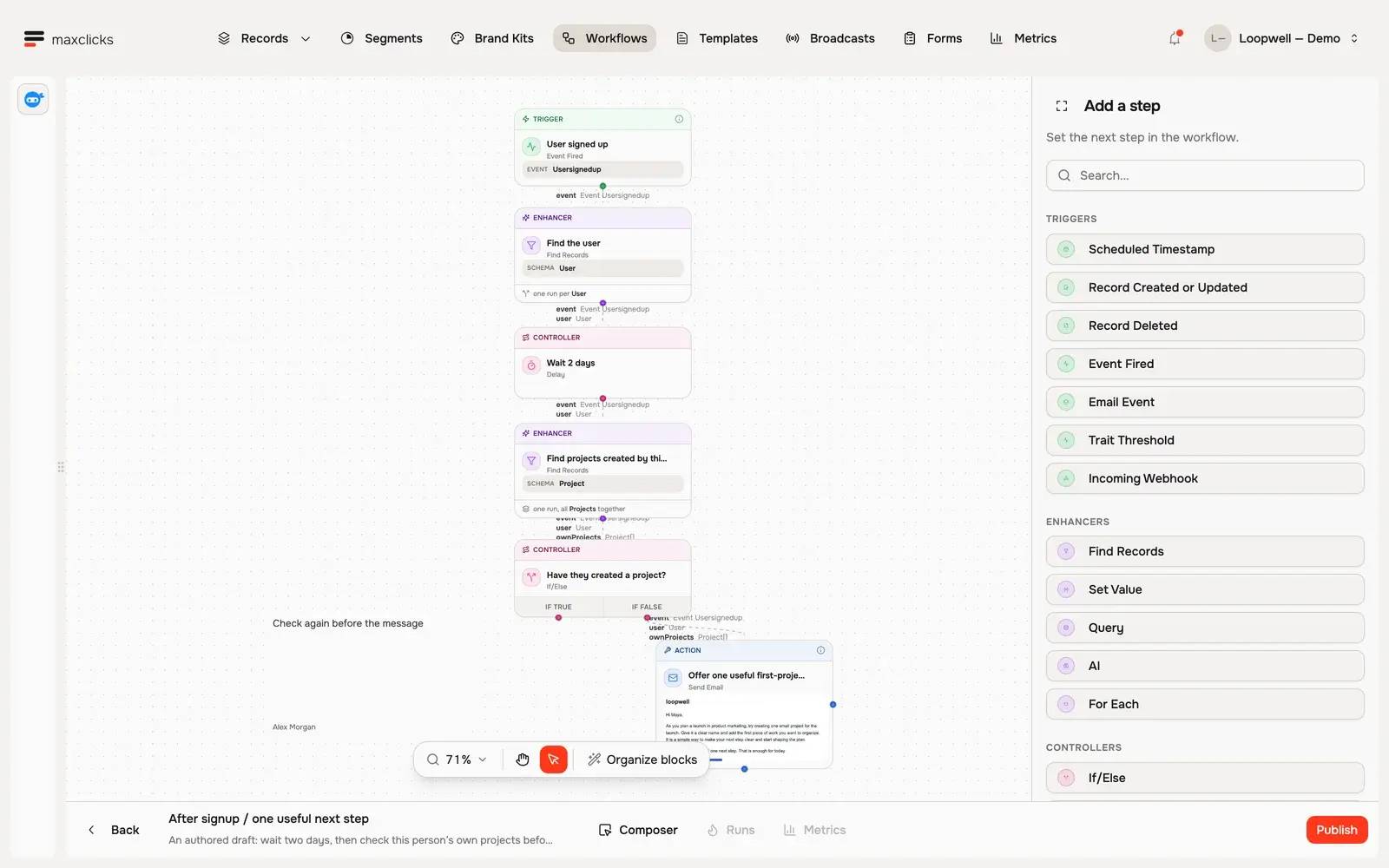
Walkthrough steps
Inspect the draft signup workflow. Open the Usersignedup trigger, two-day delay, condition checking this user’s own projects, and email step. The true branch ends the follow-up; the false branch continues. The tour does not publish or run this draft.
The unpublished-changes indicator
Once a workflow has been published at least once, any further edit marks it as having unpublished changes, often called a dirty state. The indicator is your reminder that what you see on the canvas is not yet what is running.
The distinction matters because your edits sit only on the draft until you publish them. If you tweak a condition and walk away without publishing, live runs keep using the previously published version. When the indicator is clear, the canvas and the live version match.
Versions and in-flight runs
Each publish creates a new immutable version, a frozen copy of the entire graph and every step's configuration. maxclicks keeps these versions so runs stay predictable.
- Only the latest published version starts new runs.
- A run that is already in progress finishes on the version it started on, even if you publish changes while it is running.
- This applies to long waits too. A run parked in a Delay for two weeks completes on its original version when the delay ends, regardless of how many times you republish in the meantime.
This is why you can safely edit a workflow that has active runs: you are never rewriting a run that is already underway. There is no way to cancel an in-flight run, so let versioning do its job and know that existing runs drain out on their own version.
Pause and resume
Pausing is not the same as unpublishing. A paused workflow keeps its published version but stops accepting new trigger runs.
- Pause blocks new runs only. Runs already in flight, including long delays, continue to completion. Use it to stop a workflow from enrolling anyone new while you investigate or rework it.
- Resume lets triggers start runs again. Publishing a workflow also un-pauses it, so a fresh publish both updates the live version and re-opens the gate.
Pausing is the safe way to take an automation offline temporarily without losing the runs that are mid-flight. You will find the pause and resume controls both on the workflow itself and on the Workflows list.
Duplicate a workflow
You can duplicate a workflow. The copy is created as a fresh, unpublished draft, so it starts life with no live version and no runs of its own. This makes duplication the right tool for a few common situations:
- Iterate without risk. Duplicate a live workflow, rework the copy, publish and test it, then retire the original.
- Reuse a pattern. Build one solid onboarding flow, duplicate it, and adapt the copy for a different schema or audience.
- Keep a known-good baseline. Duplicate before a big restructure so you always have the previous shape to fall back to.
Duplicate from the Workflows list. The new workflow arrives as a draft you publish when you are ready, exactly like a workflow you built from scratch.
How publishing affects triggers
Publishing does more than snapshot the graph: it also arms your triggers, and some trigger types depend on the workflow being published and unpaused to fire at all. This is worth knowing so a trigger behaves the way you expect after each publish.
- Scheduled Timestamp arms once per publish. If its timestamp is in the future, the trigger fires then; if you set no timestamp, it fires immediately on publish; a timestamp already in the past never fires. Because it re-arms on every publish, republishing a workflow whose scheduled trigger has no timestamp starts a fresh run right away.
- Event Fired only starts runs while the workflow is published and unpaused. An event that fires while the workflow is paused or unpublished does not enroll anyone, and it is not replayed later when you resume.
- Incoming Webhook requires the workflow to be published and unpaused, and the incoming request body must match the shape the step expects. A call to a paused or draft workflow does not start a run.
- Record and email triggers likewise only enroll new runs while the workflow is live and unpaused.
The practical takeaway: pausing genuinely takes an automation offline for new work, and a real-time trigger missed during a pause is not caught up afterward. If you need to process what happened during a gap, you handle it deliberately, not by resuming and expecting a backfill.
Where run data and metrics live
The workflow's first publish enables its Runs and Metrics tabs, which are greyed out until then. The Runs tab is the live view: it streams run history and per-step detail as runs execute, and it is where you diagnose failures. That is covered in understand workflow runs and fix failures.
The Metrics tab is the aggregate view, and because every publish creates its own version, you choose which published version to inspect at the top of the tab. Alongside the workflow's run totals (started, completed, and failed), it shows, for the version you picked, the average time a run spent in each step, how many runs traversed each link, and a delivery and engagement funnel for every Send Email step.
Frequently asked questions
Do my edits affect running workflows right away?
No. Edits land on the draft and change nothing live until you publish. When you publish, the new version starts handling new runs, while runs already in progress finish on the version that started them.
What does the unpublished-changes indicator mean?
It means the canvas has edits that are not yet live. The previously published version keeps running until you publish again. When the indicator is clear, what you see matches what is running.
What is the difference between pausing and unpublishing?
There is no unpublish. Pausing keeps the published version but stops new runs from starting, while letting in-flight runs finish. Resuming, or publishing again, re-opens the workflow to new runs.
Can I duplicate a workflow?
Yes. Duplicating creates a fresh, unpublished draft copy with no runs of its own. It is the recommended way to iterate on a live workflow safely or to reuse an existing pattern for a new automation.
Can I stop a run that is already in progress?
No. There is no run cancellation. Pausing stops new runs but lets current ones finish. If a workflow is doing something you do not want, pause it and let the in-flight runs drain, or fix the graph and publish a corrected version for future runs.
Did this article answer your question?